
Does this sound familiar? You want to inform a customer about an upcoming appointment or quickly forward a report to the back office after a visit. Until now, both required a detour via your external email program.
From now on, you can do both directly in portatour® with the new functions: Send appointment notice by email and Send report via email. All via your existing Microsoft email account.
Set up email delivery providers
To use the new functions, first set up an email delivery provider in portatour®. Proceed as follows:
- Open the Options in the main menu.
- Select Email Delivery Providers > Add.
- Click Log in with Microsoft.
- Log in with the credentials of the respective account.
- Allow emails to be sent via your account. If access is blocked by your organization, contact your IT administrator.
Note: portatour® requires only the permission to send emails, without access to the mailboxes. - A window opens for saving the email delivery provider.
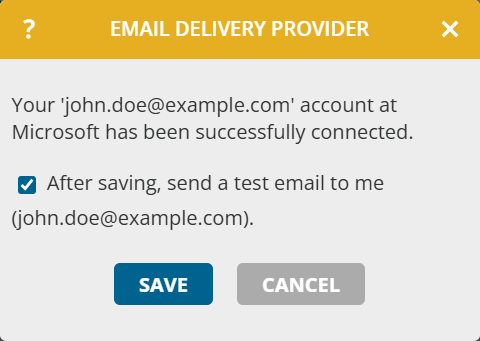
- Click Save.
- You will receive a test email sent by portatour® via your configured provider.
Note: An email delivery provider can only be set up by the user themselves, as this requires their individual permissions with Microsoft.
Announce appointment by email
With the new function Send appointment notice by email, you send an email announcement for an appointment to your customers directly from portatour®. Proceed as follows:
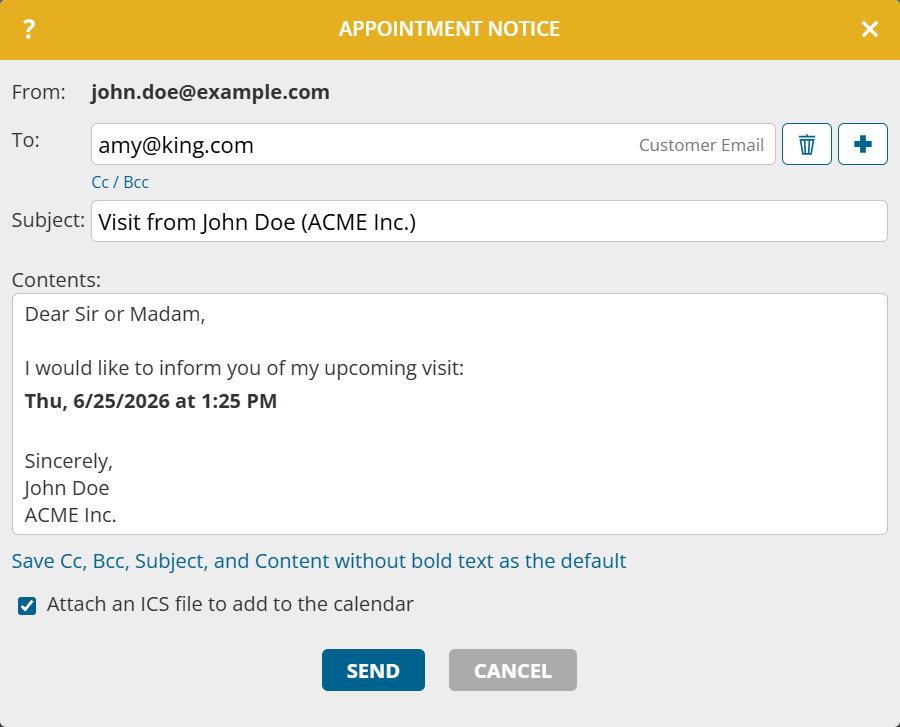
- Select Send appointment notice by email by right-clicking an upcoming appointment in the calendar or schedule, or on the appointment detail page under actions.
- Check or complete To, Cc, Bcc, Subject and Content. The To field is filled automatically if exactly one email address is stored for the appointment or customer. If several addresses are stored, they appear as suggestions for selection.
- Click Send.
Announced appointments are marked with an announcement icon in all views (calendar, appointment list, schedule). This information is also available in extended search and export. If you move or edit such appointments, you will see a note that the recipients will not be automatically informed again.

Notes:
- The optionally attached ICS file is used to add the appointment to the recipient’s calendar. It is purely informational and not an invitation with response options.
- To avoid having to make the same adjustments every time, use Save CC, BCC, Subject, and Content without bold text as default.
Send report as email
With the new function Send report via email, you send a report directly from portatour® to recipients of your choice. Proceed as follows:
- Select Send report via email on the customer detail page under Last report, by right-clicking a report in the report list, or via Send via email in the opened report.
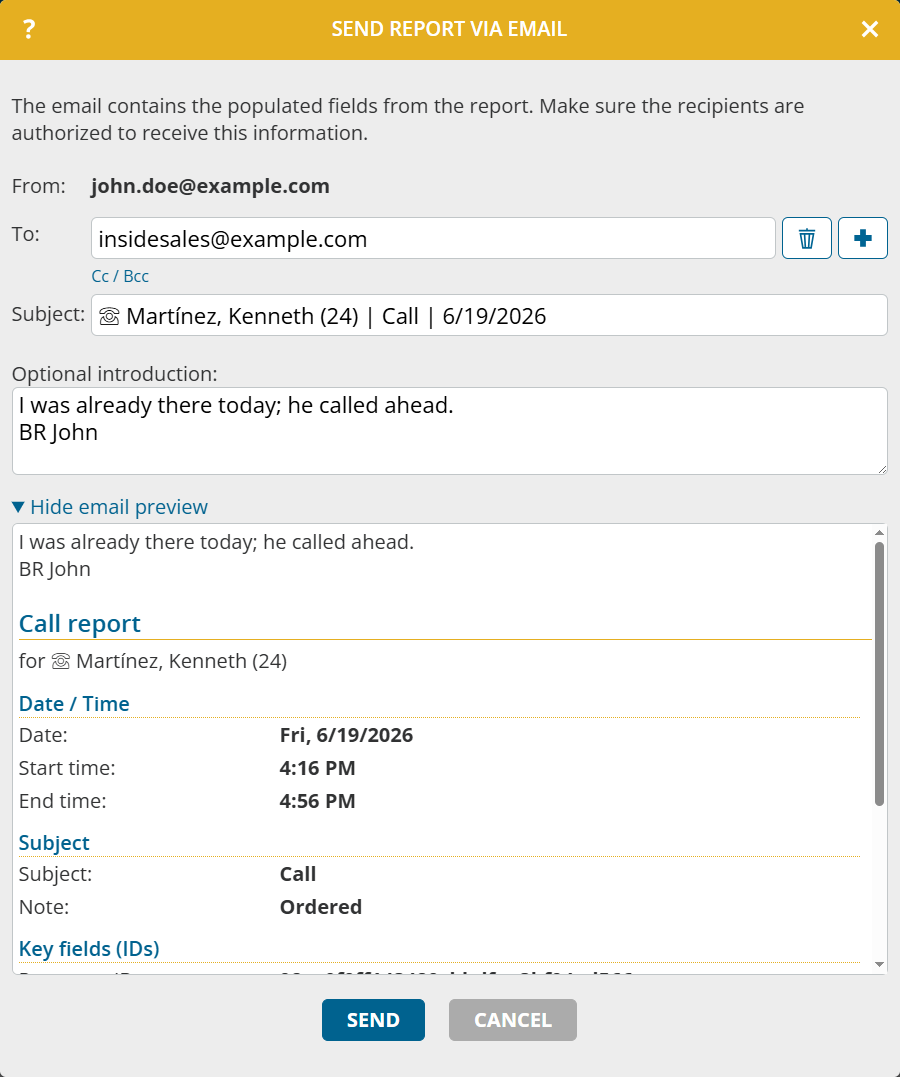
- Enter the desired recipients under To. Recently used addresses are displayed as suggestions. In addition to To, Cc and Bcc are also available.
- Click Send.
Notes:
- The email contains the completed fields of the report. Make sure that the recipients are authorized to receive this data.
- Click Show email preview to check the content of the email before sending.
- Write an introduction if you want to provide the recipient with additional information about the report. It will be inserted in the email before the report content.
- If the report contains external files, these are sent as attachments by default if the total size is under 20 MB. Disable Attach external files as attachments if you do not want to send the files along.
Further notes on sending emails
- All sent emails are stored by the email provider in the sent items.
- Administrators and supervisors can also use Send appointment notice by email and Send report as email in other users’ workspaces, provided they have configured their own provider. Emails are always sent via their own provider. In the case of Send appointment notice by email, you initially receive an adapted introduction text. The saved default applies per workspace.
- Several email delivery providers can be configured at the same time. When sending, you then select which provider the email should be sent through.
- The functions Send appointment notice by email and Send report via email are not available if portatour® is connected to Dynamics CRM as the data source system.