Category Archives: Anywhere

Major July 2026 update

After an intensive development phase, we have released a major update of portatour® today. To read details about the new features, scroll down or use the following links:

We wish you lots of fun and success with the new functions and look forward to your feedback at feedback@portatour.com.

Send appointment notice and report via email

Does this sound familiar? You want to inform a customer about an upcoming appointment or quickly forward a report to the back office after a visit. Until now, both required a detour via your external email program.

From now on, you can do both directly in portatour® with the new functions: Send appointment notice by email and Send report via email. All via your existing Microsoft email account.

Set up email delivery providers

To use the new functions, first set up an email delivery provider in portatour®. Proceed as follows:

  1. Open the Options in the main menu.
  2. Select Email Delivery Providers > Add.
  3. Click Log in with Microsoft.
  4. Log in with the credentials of the respective account.
  5. Allow emails to be sent via your account. If access is blocked by your organization, contact your IT administrator.
    Note: portatour® requires only the permission to send emails, without access to the mailboxes.
  6. A window opens for saving the email delivery provider.
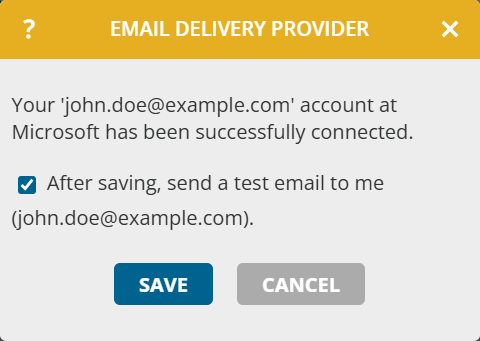
  1. Click Save.
  2. You will receive a test email sent by portatour® via your configured provider.

Note: An email delivery provider can only be set up by the user themselves, as this requires their individual permissions with Microsoft.

Announce appointment by email

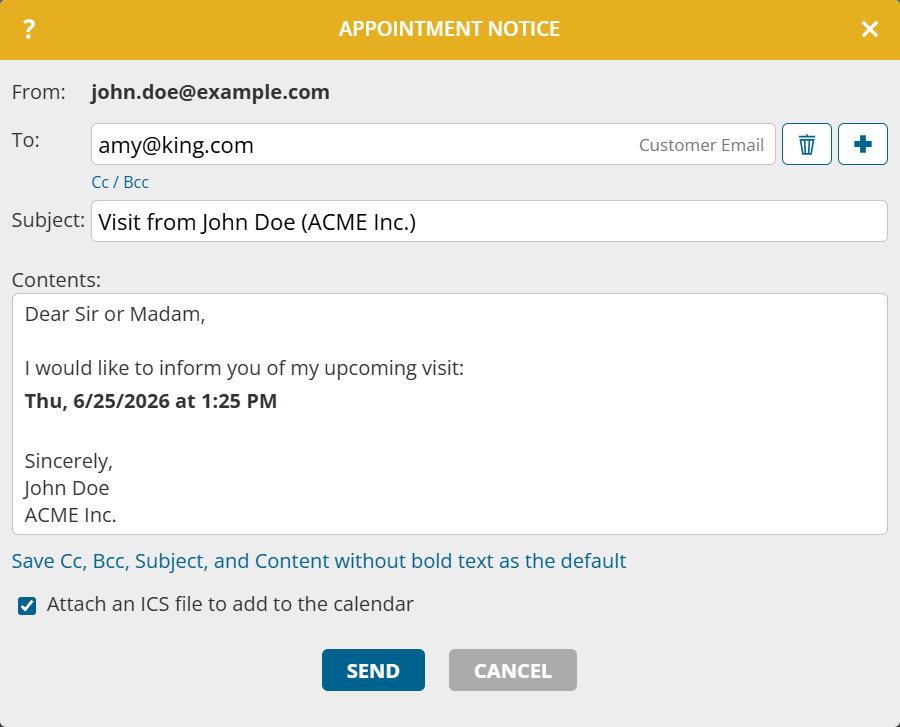
With the new function Send appointment notice by email, you send an email announcement for an appointment to your customers directly from portatour®. Proceed as follows:

  1. Select Send appointment notice by email by right-clicking an upcoming appointment in the calendar or schedule, or on the appointment detail page under actions.
  2. Check or complete To, Cc, Bcc, Subject and Content. The To field is filled automatically if exactly one email address is stored for the appointment or customer. If several addresses are stored, they appear as suggestions for selection.
  3. Click Send.

Announced appointments are marked with an announcement icon in all views (calendar, appointment list, schedule). This information is also available in extended search and export. If you move or edit such appointments, you will see a note that the recipients will not be automatically informed again.

Notes:

  • The optionally attached ICS file is used to add the appointment to the recipient’s calendar. It is purely informational and not an invitation with response options.
  • To avoid having to make the same adjustments every time, use Save CC, BCC, Subject, and Content without bold text as default.

Send report as email

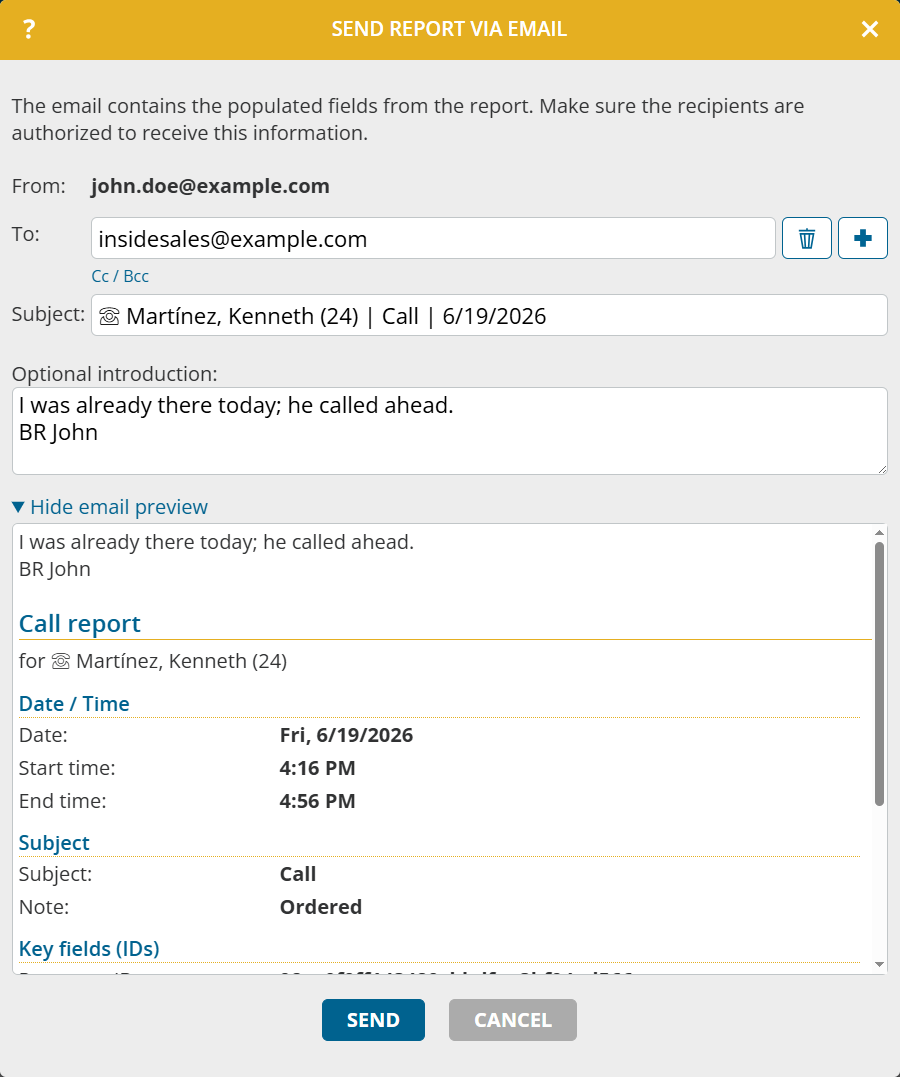
With the new function Send report via email, you send a report directly from portatour® to recipients of your choice. Proceed as follows:

  1. Select Send report via email on the customer detail page under Last report, by right-clicking a report in the report list, or via Send via email in the opened report.
  2. Enter the desired recipients under To. Recently used addresses are displayed as suggestions. In addition to To, Cc and Bcc are also available.
  3. Click Send.

Notes:

  • The email contains the completed fields of the report. Make sure that the recipients are authorized to receive this data.
  • Click Show email preview to check the content of the email before sending.
  • Write an introduction if you want to provide the recipient with additional information about the report. It will be inserted in the email before the report content.
  • If the report contains external files, these are sent as attachments by default if the total size is under 20 MB. Disable Attach external files as attachments if you do not want to send the files along.

Further notes on sending emails

  • All sent emails are stored by the email provider in the sent items.
  • Administrators and supervisors can also use Send appointment notice by email and Send report as email in other users’ workspaces, provided they have configured their own provider. Emails are always sent via their own provider. In the case of Send appointment notice by email, you initially receive an adapted introduction text. The saved default applies per workspace.
  • Several email delivery providers can be configured at the same time. When sending, you then select which provider the email should be sent through.
  • The functions Send appointment notice by email and Send report via email are not available if portatour® is connected to Dynamics CRM as the data source system.

Map enhancements

Display schedules on the company map

This update affects administrators and supervisors of company accounts with at least two users.

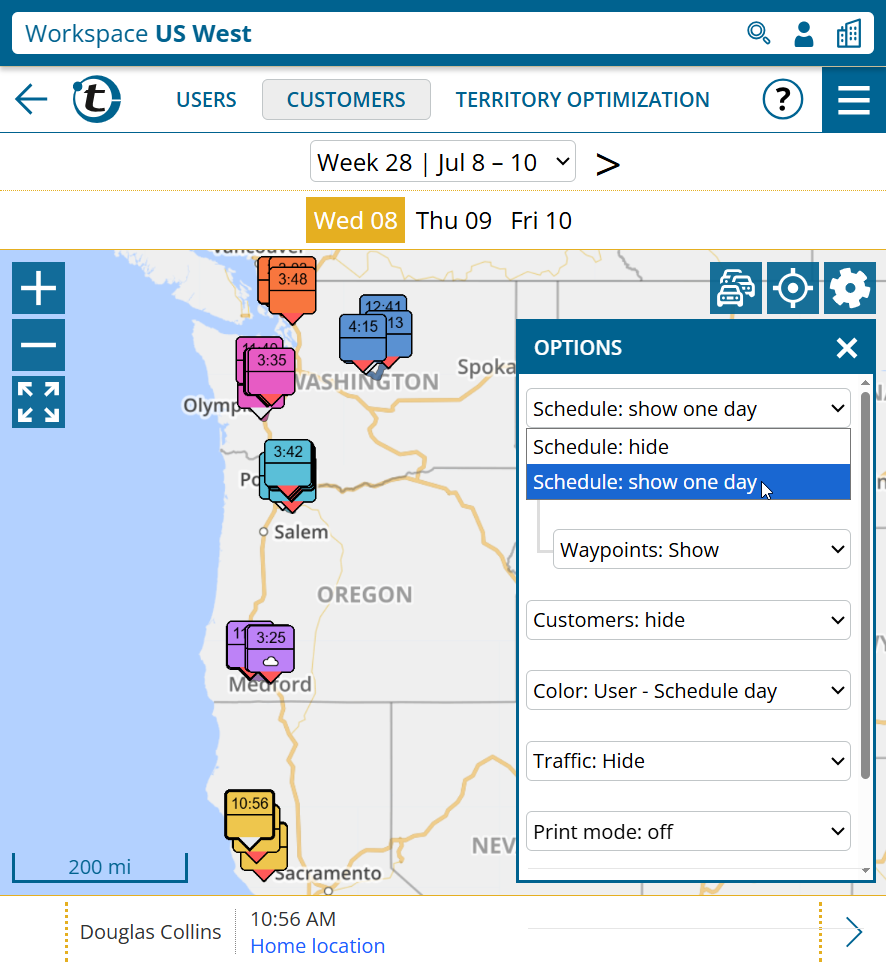
Until now, keeping track of where your field reps will be today required manually clicking through each individual user map. From now on, you can clearly see the schedules of all users directly in company and user group maps.

Proceed as follows:

  1. Open the desired organization or group workspace.
  2. Click Customers > Map.
  3. In the map, click the gear icon in the top right.
  4. Switch to schedule: Show one day.
  5. All planned calls and driving routes for the selected day are displayed.

Notes:

  • Optionally, you can hide driving routes and waypoints.
  • All customers not included in the schedule are hidden; you can show them again as needed.

Display customer info bubble in selection mode

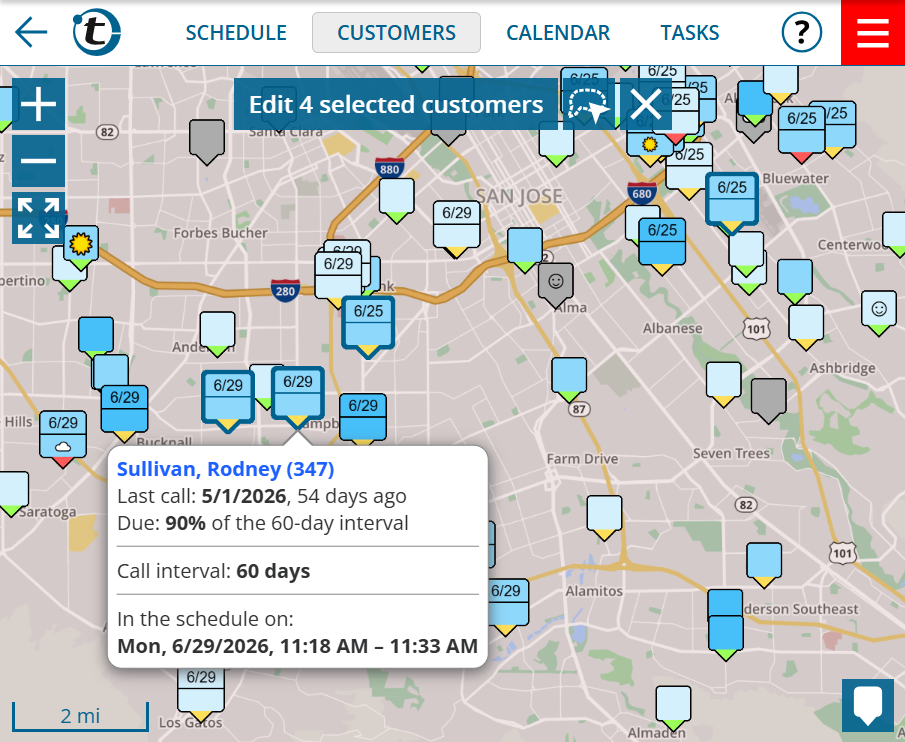
In selection mode, it was previously not possible to display a customer’s info bubble. From now on, both work together:

  1. Open the map, e.g. via the customer list or the schedule.
  2. Click the gear icon in the top right and select Enable selection mode.
  3. Select one or more customers.
  4. Click one of the selected customers to display the info bubble.
  5. Click the customer once more to remove the selection. If you only want to hide the info bubble, click somewhere else on the map.

Note: This feature is also available in the maps for Territory Optimization.

Focus coloring groups on the map

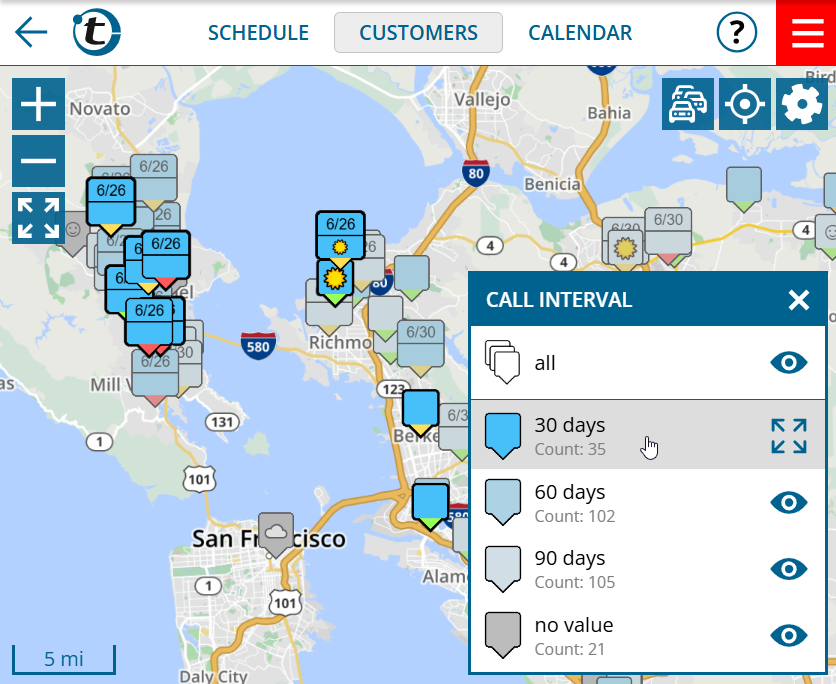
Have you ever wanted to highlight all customers of a specific coloring group on the map? From now on, simply click the desired group in the map legend.

Expanded periodic portatour® Report delivery by email

Until now, automatic delivery could only be configured for portatour® Reports for users and only by manually entering email addresses. New from now on:

  • portatour® Reports for organizations and user groups can now also be sent automatically.
  • Recipients can also be selected automatically based on the permission levels in user management, using the email addresses stored for the users.
  • You decide the day and time window for delivery yourself.

All portatour® Report-related settings are now grouped in their own portatour® Report section in the options.

Set up organization default for report delivery

This update affects administrators and supervisors of company accounts with at least two users.

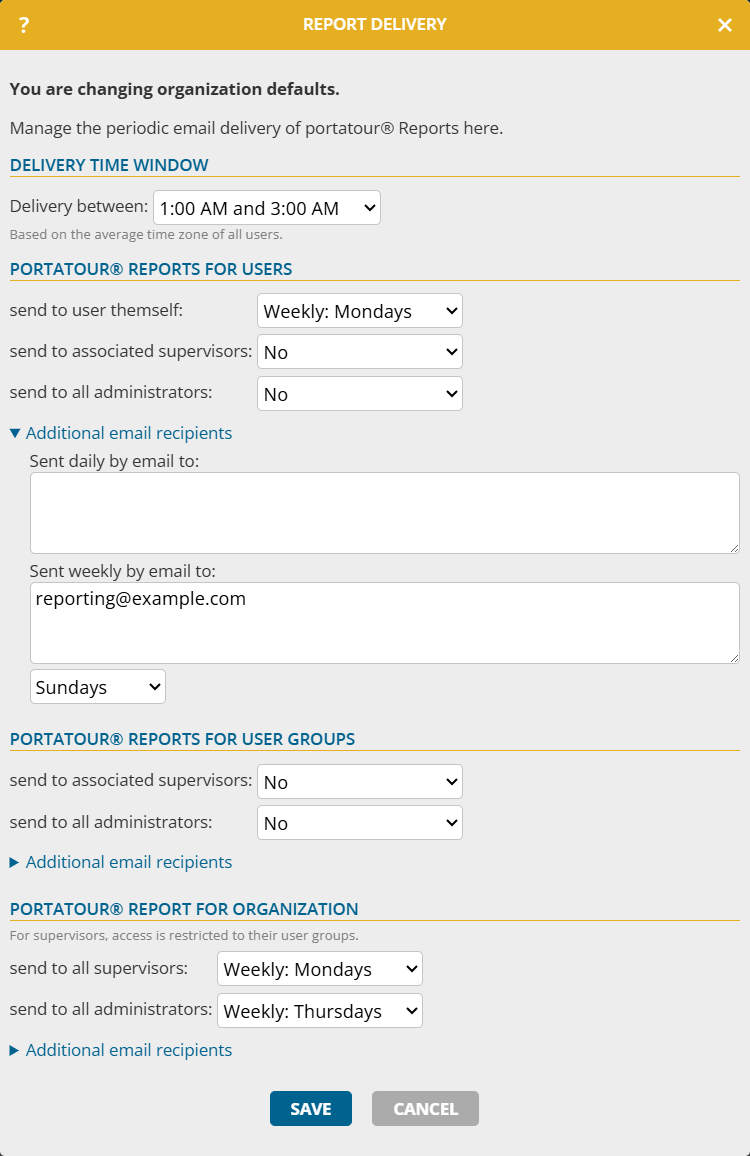
To configure organization-wide report delivery, proceed as follows:

  1. Open the organization options in the workspace organization.
  2. Click portatour® Reports > Periodic report delivery via email.
  3. Under Delivery between, define when the reports should be sent.
  4. Configure the delivery schedule for portatour® Report for users, portatour® Report for user group and portatour® Report for organization. For each recipient group, select: No delivery, Daily or Weekly on a selectable weekday.
  5. Click Save.

Notes:

  • The existing email addresses from Daily email to and Weekly (Sunday) email to have been automatically transferred to the respective Additional email recipients. Report delivery continues to behave as before.
  • This extension is not available if portatour® is connected to Dynamics CRM as the data source system.
Customize periodic report delivery for users

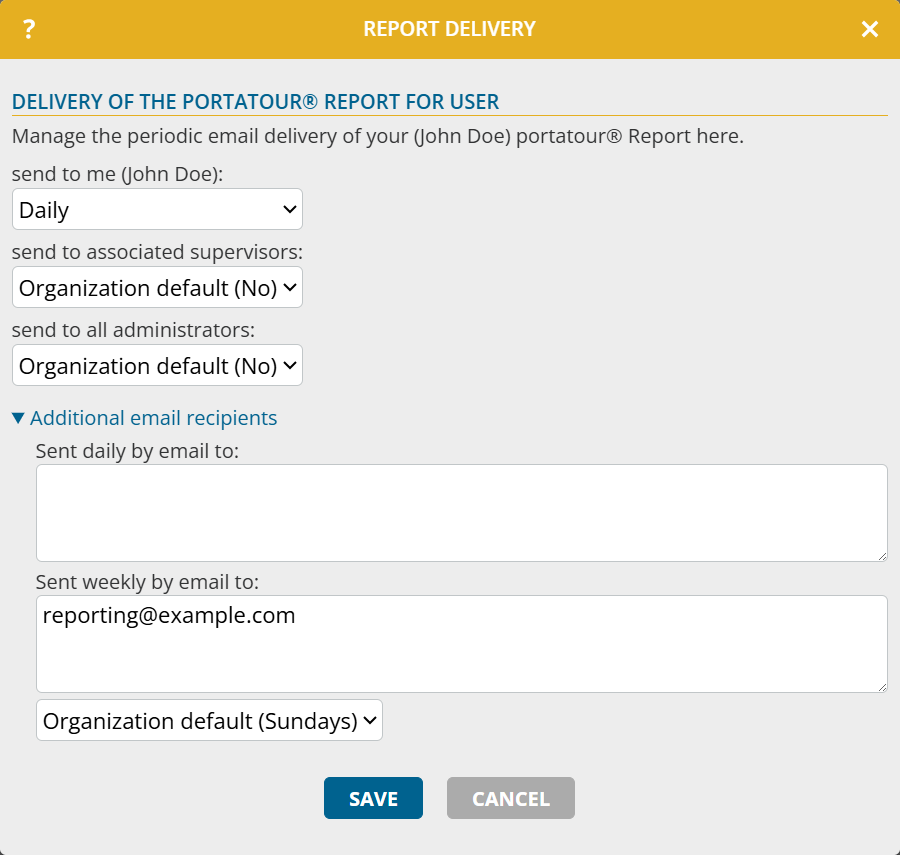
To customize report delivery for users with their own schedule, proceed as follows:

  1. Open the Options.
  2. Under portatour® Reports, click Periodic report delivery via email.
  3. Under Delivery of the portatour® Report for User , you can overwrite the organization default for individual settings and define whether your report is sent to yourself, to associated supervisors and/or to all administrators.
  4. Click Save.

Notes:

  • The existing email addresses from Daily email to and Weekly (Sunday) email to have been automatically transferred to the respective Additional email recipients. Report delivery continues to behave as before.
  • For individual accounts, the settings for supervisors and administrators cannot be entered.
  • If portatour® is connected to Dynamics CRM as the data source system, only the additional email recipients can be entered.
  • For administrators: With the new permission Edit portatour® Report settings, you define which authorization levels can customize Periodic report delivery. The permission is initially set to the same value as the existing permission Edit reporting settings

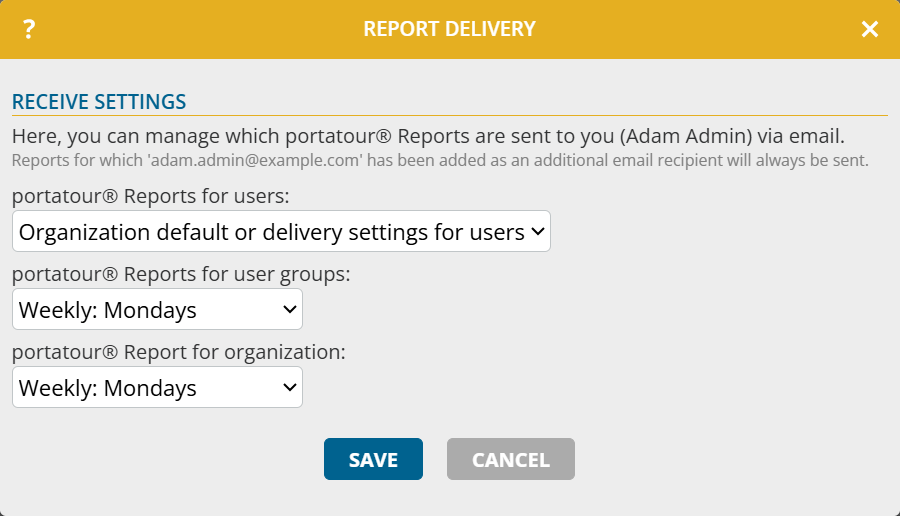
As an administrator and supervisor, you have Receive settings. There, you can define for yourself which reports are sent to you, independently of the organization default. Proceed as follows:

  1. Open the Options.
  2. Under portatour® Reports, click Periodic report delivery via email.
  3. Under Receive settings, define which reports are sent to you and when.

Note: This extension is not available if portatour® is connected to Dynamics CRM as the data source system.
Further improvements

Calendar subscriptions: handling of private appointments configurable

Private appointments from your external calendar were previously imported into portatour® unfiltered, including title and location. From now on, a new default applies to all calendar subscriptions: only the time is imported; title, location and further details are not.

To adjust this behavior, proceed as follows:

  1. Open the Options.
  2. Click Calendar subscriptions.
  3. Edit an existing subscription or create a new one.
  4. For the desired calendar, select Subscribe with custom settings.
  5. Under Appointments marked as ‘Private’, select the desired option:
    • Include completely
    • Only take the time and address
    • Only take the time (default)
    • Do not include

User list: mass editing of user group membership

This update affects administrators of company accounts with at least two users.

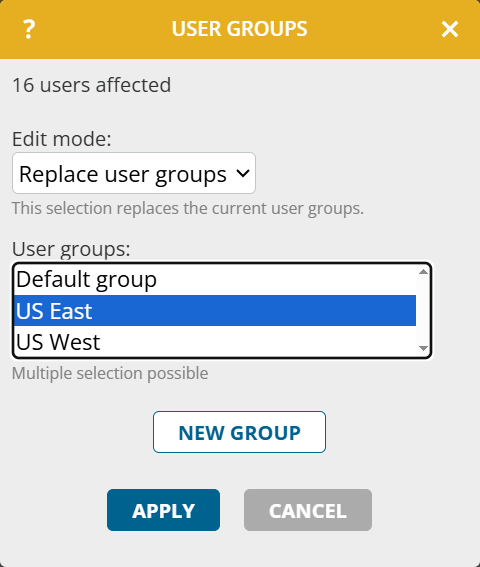
From now on, you can edit the user groups for multiple users at the same time via mass editing. You can not only replace all user groups, but also add or remove individual user groups.

Proceed as follows:

  1. In the Workspace Organization, open the menu item Users.
  2. Use selection mode or extended search to select users.
  3. Click Edit selected or Edit all X.
  4. Click More > Edit user groups.
  5. Select the Edit mode and the user group. Create a new group if needed.
  6. Click Apply.

Territory Optimization: improvements

The following updates affect administrators and supervisors of company accounts with activated Territory Optimization.

Actual visits visible in the initial situation

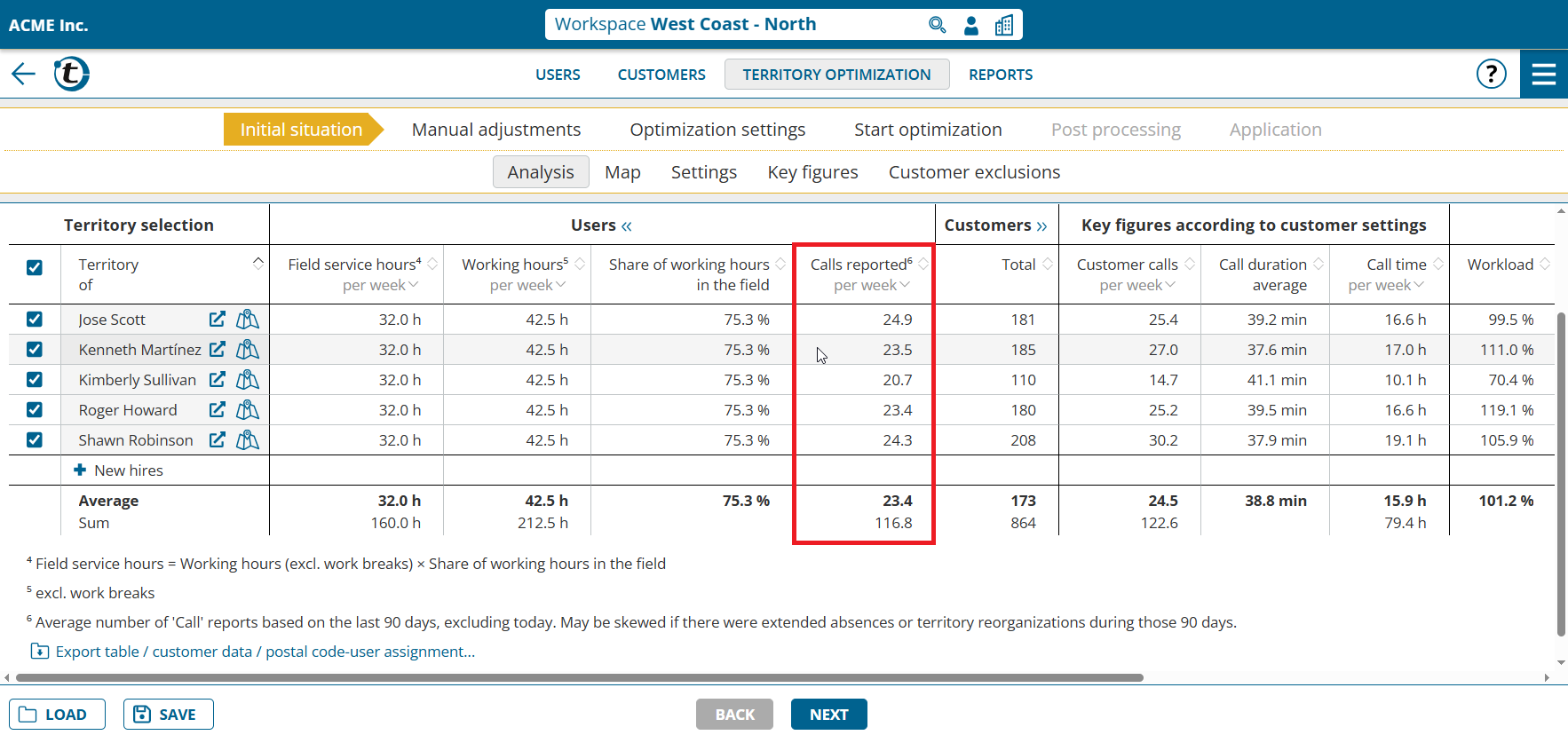
Until now, in the initial situation you could see how many visits are planned according to customer settings and how many would theoretically be possible when taking driving time into account, but not how many were actually achieved in the past. From now on, you can see this information in the new column Calls reported. To display it:

  1. Open Territory Optimization for the organization or the desired user group.
  2. If necessary, switch to Initial situation > Analysis.
  3. Click the table section Users to expand it.
  4. The column Calls reported appears on the far right of the section.

Notes:

  • The value is only meaningful if call reports are created in portatour®. The automatically created reports are sufficient for this.
  • The value is based on reports of the “Call” type from the last 90 days. It may be distorted if longer absences or territory restructurings took place during this period.
  • If fewer than 90 days of call reports are available, the value is extrapolated and marked accordingly.

Better display of new employees

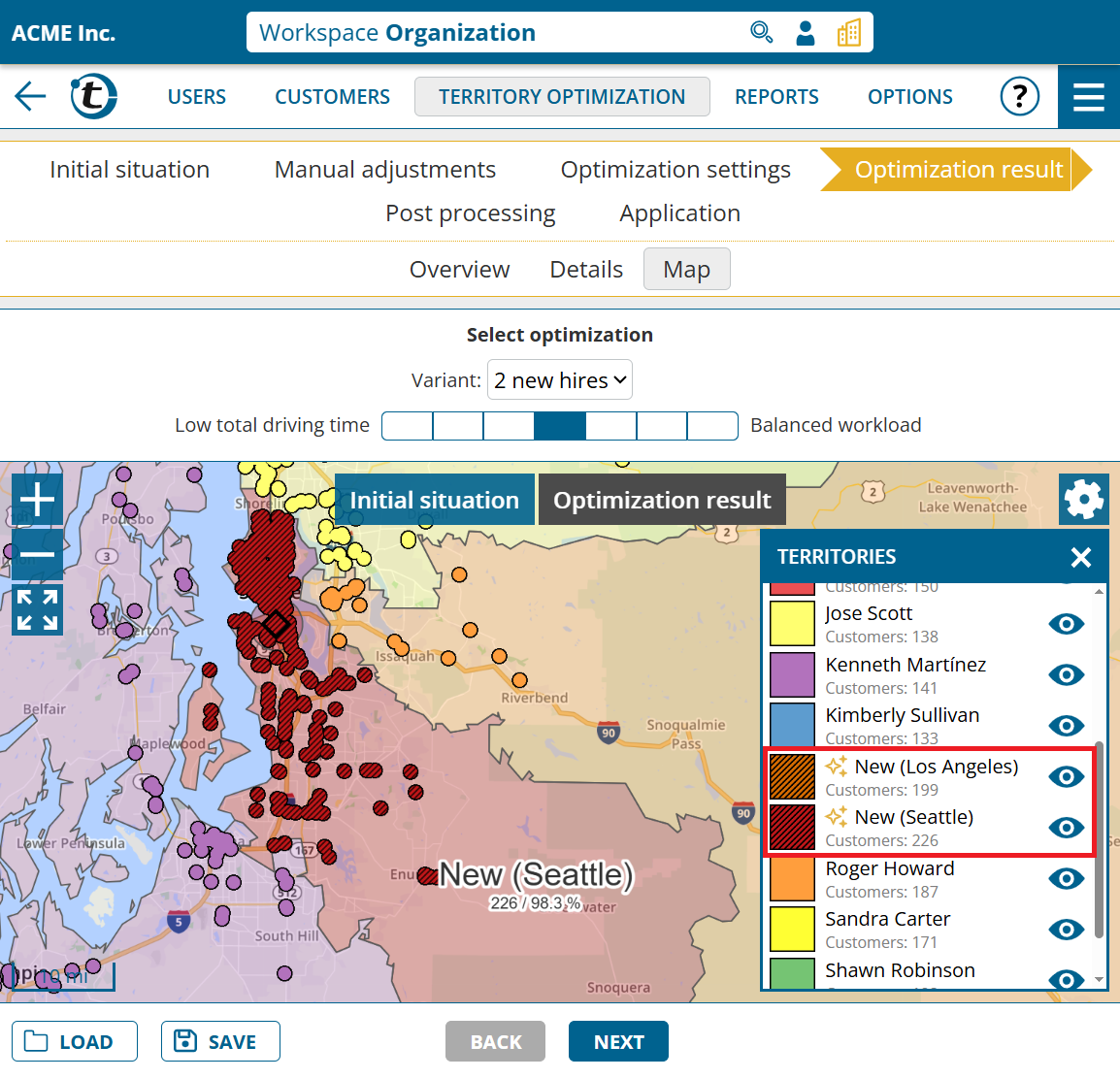
To make the territories of new employees easier to recognize, their customers are now displayed with hatching.

In addition, new employees with an automatically determined home location receive the proposed home location as a name suffix, for example “New (Seattle)”. This makes them easier to identify throughout Territory Optimization.

Note: The location suffix in the employee name is only assigned for new optimizations.

Major March 2026 update

After an intensive development period, we have released a major update of portatour® today. To read details about the new features, scroll down or use the following links:

We wish you lots of fun and success with the new functions and look forward to your feedback at feedback@portatour.com.

Extensions to the map

Save individual map options as default

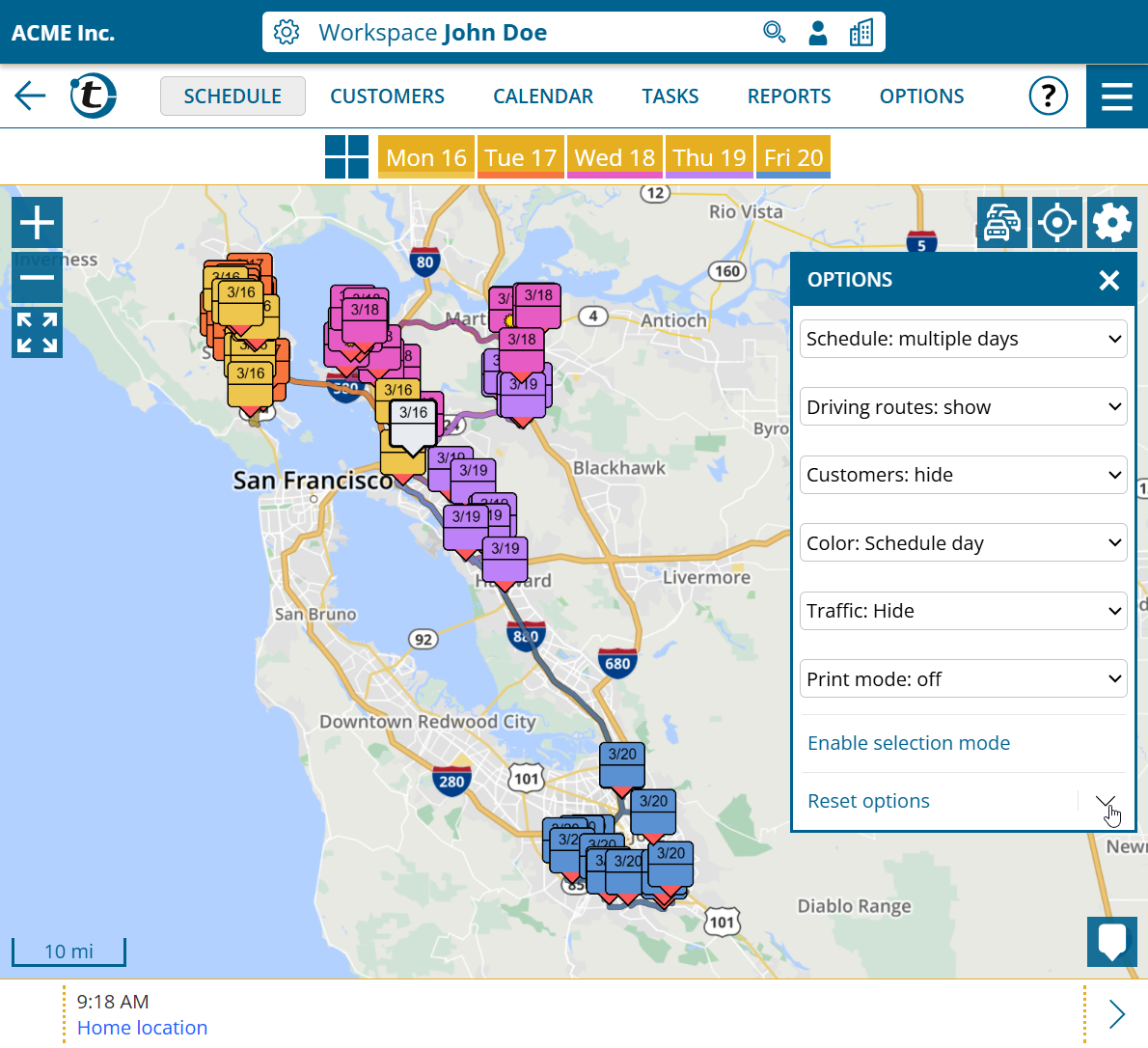
Previously, your changes in the map options were reset when you reopened the map. From now on, you can define yourself which options are permanently set as the default.

Proceed as follows to save the standard for a map:

  1. Set the desired options.
  2. Click on the arrow downwards next to “Reset options“.
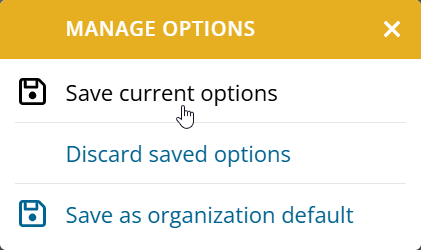
  1. Select “Save current options“.

The standard is saved separately for the customer map, schedule map and the map in the territory optimization. The selection of the key figures to be displayed in the territory areas selection is also saved in the territory optimization.

As an administrator, you can also use “Save as organization default” to set the current options as the default for users who have not saved their own default.

Territory optimization : Map with additional coloring options

This news concerns administrators and supervisors of company accounts with activated territory optimization or territory analysis.

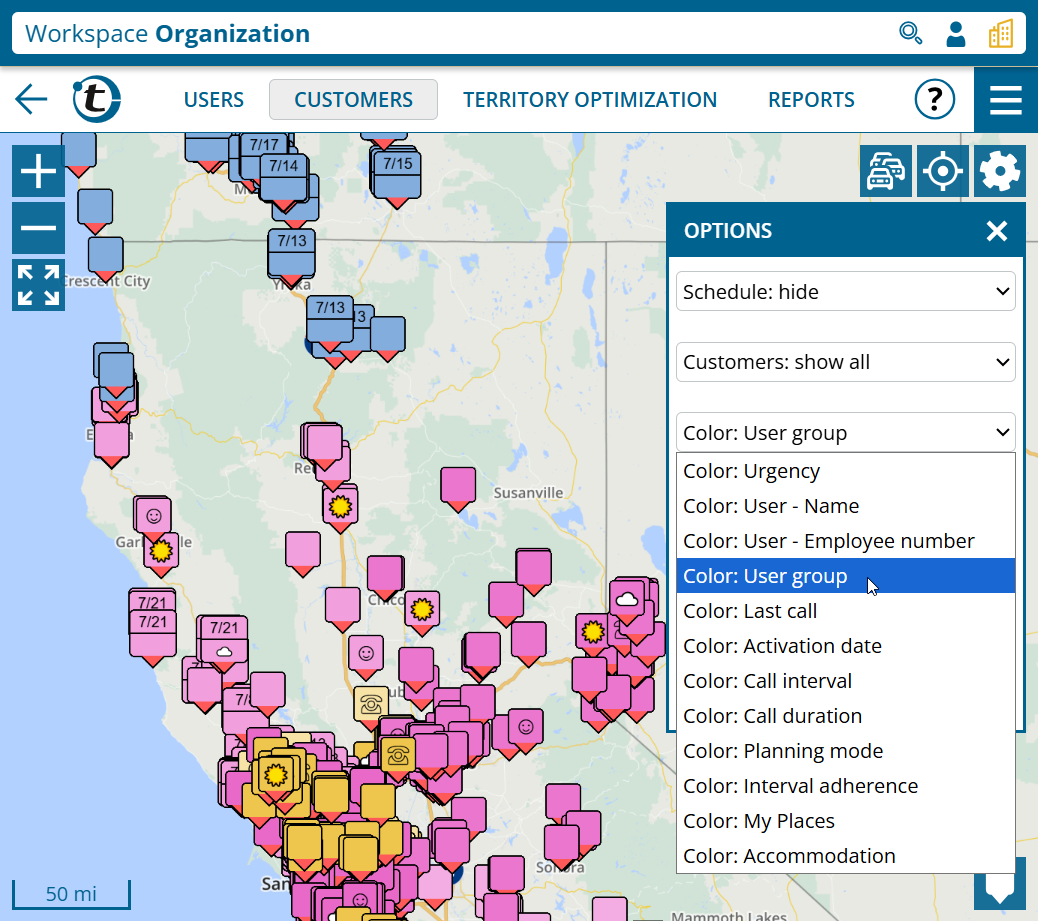
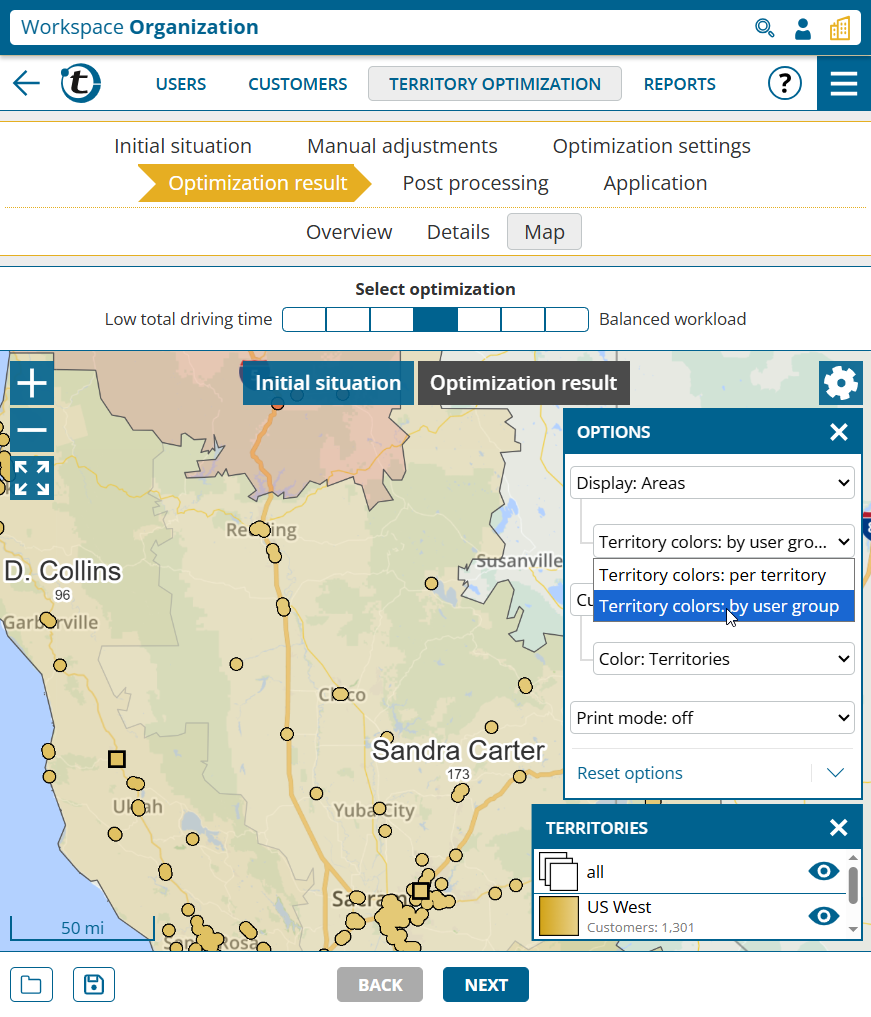
From now on, all coloring options from the customer map are available on every map in the territory optimization – including coloring according to custom fields.

Scheduling enhancements

Warnings for appointments when customers are not available

Have you ever entered an appointment and then realized that the customer was closed at that time? portatour® will now inform you of possible limited availability directly when creating and editing appointments.

Limited availability results from:

  • business hours
  • call blocks
  • vacation
  • scheduling restrictions

Increase in the amount of preferred accommodations to 50

Overnight stays can significantly increase the efficiency of your routes. So that you can store even more of your desired hotels, portatour® is doubling the maximum amount of preferred accommodations from 25 to 50.

Corrected calculation of week numbers for some countries

portatour® now calculates the week numbers correctly for those countries that do not use the ISO standard by default. For the following language and region settings, the calculation variant “First day of the week”, which is common in these countries, now applies:

  • English (Australia)
  • English (Canada)
  • English (New Zealand)
  • English (South Africa)
  • English (United States)
  • Español (Argentina)
  • Español (Chile)
  • Español (Colombia)
  • Español (Estados Unidos)
  • Español (México)
  • Français (Canada)
  • Português (Brasil)

Reporting enhancements

New report types for “By phone” and “By phone instead of in person”

Previously, the three options “By phone instead of in person”, “By phone” and “Other report” resulted in the same report type “Other report”. From now on, there is a separate report type for each of these three cases. This allows you to configure the custom fields differently.

The new report types can also be found in the import, export and extended search. If necessary, adjust any automated exports and processing.

Note: This function is not yet available if portatour® is connected to Dynamics CRM as the data source system.
Scheduling status and urgency of the called customers in the report

portatour® adds further details on the status of your completed calls to the report. In the section “call reports“, you can see in the table in the additional columns “Scheduling status and urgency” whether a customer was in the schedule at the time the report was created and what the urgency was at that time.

The new columns are also available via the report export.

There is also a new section “Planning status and urgency of customers visited in the last 90 days“. There you can see statistics based on these values.

Please note that the underlying data is determined and saved when the report is created. Subsequent changes to the call reports have no influence. Call reports entered late can distort the statistics.

The section “Currently overdue customers” now also shows if a customer call is planned for this customer in the schedule.

Note: This feature is not yet available if portatour® is connected to Dynamics CRM as the data source system.
Entering reports externally

Does your company record call reports also in another system? portatour® can now seamlessly connect to it. When you click on “Called now” or “Missed now” for a customer, portatour® opens the external URL you have configured. This allows you to open the appropriate data record or the desired entry form directly in the external system. The external URLs are opened in addition to the actions from ‘Report creation’.

How to enable this feature organization-wide as an administrator:

  1. In the “Workspace Organization“, open “Options“.
  2. Click on “Reporting“.
  3. Set “Enter reports externally” to “Enter externally“.
  4. At “For customers” click on “Configure“.
  5. Enter the external URL to be opened at “Called now“.
  6. Optionally use placeholders that portatour® fills with the corresponding values when the URL is opened.

If required, you can overwrite the settings for each user. The new authorization “Edit external report entry settings” controls which authorization level is required for the override.

Note: This function is not yet available if portatour® is connected to Dynamics CRM as the data source system.