Display schedules on the company map
This update affects administrators and supervisors of company accounts with at least two users.
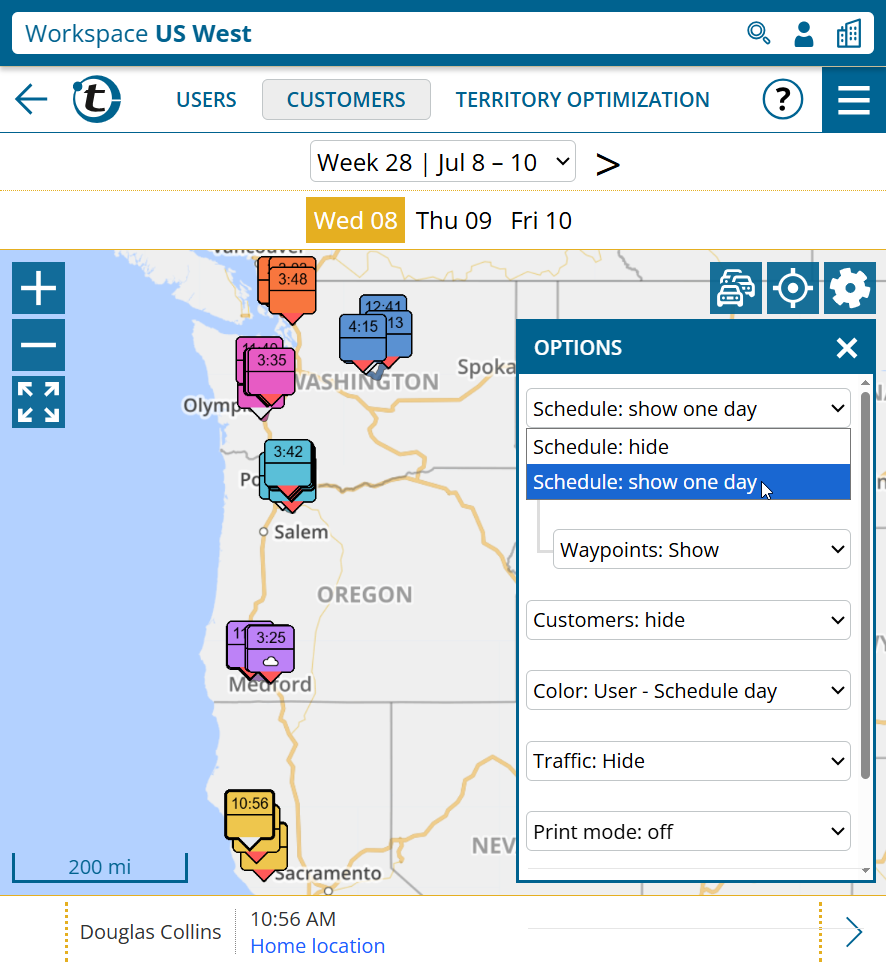
Until now, keeping track of where your field reps will be today required manually clicking through each individual user map. From now on, you can clearly see the schedules of all users directly in company and user group maps.
Proceed as follows:
- Open the desired organization or group workspace.
- Click Customers > Map.
- In the map, click the gear icon in the top right.
- Switch to schedule: Show one day.
- All planned calls and driving routes for the selected day are displayed.
Notes:
- Optionally, you can hide driving routes and waypoints.
- All customers not included in the schedule are hidden; you can show them again as needed.
Display customer info bubble in selection mode
In selection mode, it was previously not possible to display a customer’s info bubble. From now on, both work together:
- Open the map, e.g. via the customer list or the schedule.
- Click the gear icon in the top right and select Enable selection mode.
- Select one or more customers.
- Click one of the selected customers to display the info bubble.
- Click the customer once more to remove the selection. If you only want to hide the info bubble, click somewhere else on the map.
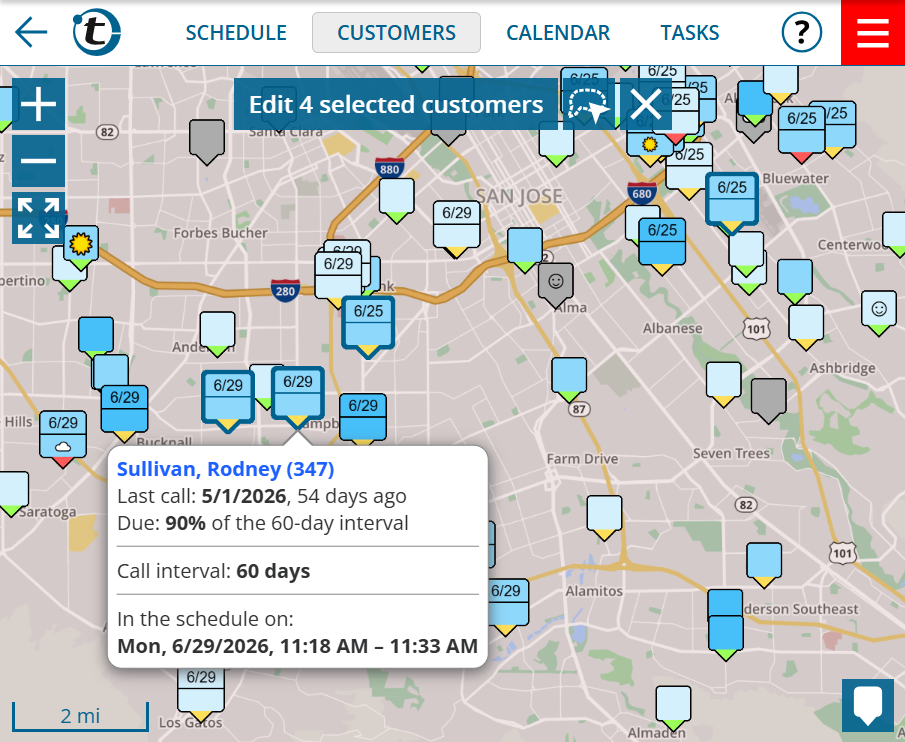
Note: This feature is also available in the maps for Territory Optimization.
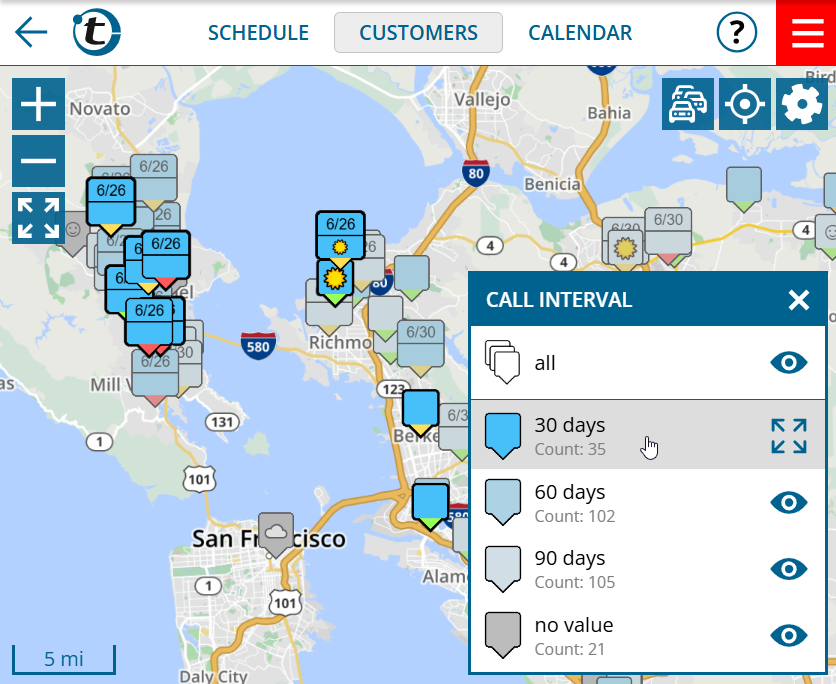
Focus coloring groups on the map
Have you ever wanted to highlight all customers of a specific coloring group on the map? From now on, simply click the desired group in the map legend.