Interface: Data analysis using OData Version 4

This news affects administrators of company accounts with at least two users.

The analysis of call data and master data is a central component of effective corporate management. portatour® now provides an OData interface in version 4 for this purpose. The interface enables the direct connection of portatour® to BI tools such as Microsoft Excel®, Microsoft Power BI®, Qlik® or Tableau™.

You will find the instructions as follows:

  1. Open the “Options” in the Workspace Organization.
  2. Click on “OData for data analysis“.

Territory optimization: Qualifications for territory assignment

This news affects administrators and supervisors of company accounts with activated territory optimization.

Sometimes only certain field reps can take care of certain customers. Reasons for this may include, for example, requirements regarding language skills, specialized knowledge, or experience.

To better take this into account in automatic territory optimization, portatour now offers the “Qualifications for territory assignment” feature. This ensures that each customer is assigned to a user who meets all the necessary qualifications.

And this is how you proceed:

  1. Activate and define qualifications organization-wide
  2. Enter fulfilled qualifications for users
  3. Enter necessary qualifications with customers
  4. Perform territory optimization with qualifications

Activate and define qualifications organization-wide

  1. Open the “options” in the “Workspace Organization“.
  2. Click on “Qualifications for territory assignment“.
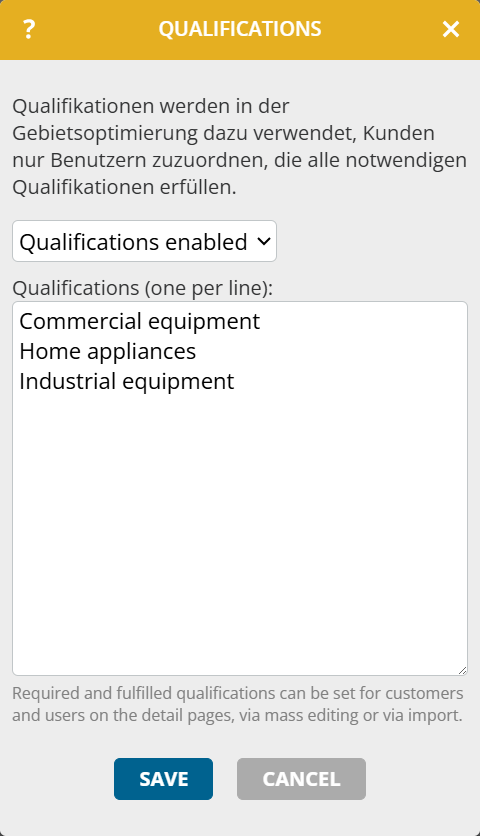
  3. Select “Qualifications enabled“.
  4. Enter up to 20 possible qualifications for your company line by line. If you want to assign the key for each qualification yourself, then proceed as described at Definition of user-defined selection and multiple selection fields
  5. Click on “Save“.

Enter fulfilled qualifications for users

  1. Open the details page of a user.
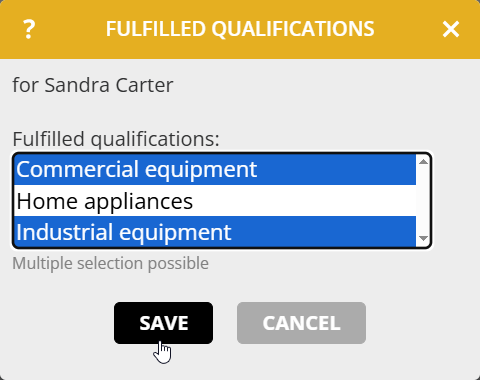
  2. Click on the pencil in the section “Fulfilled qualifications“.
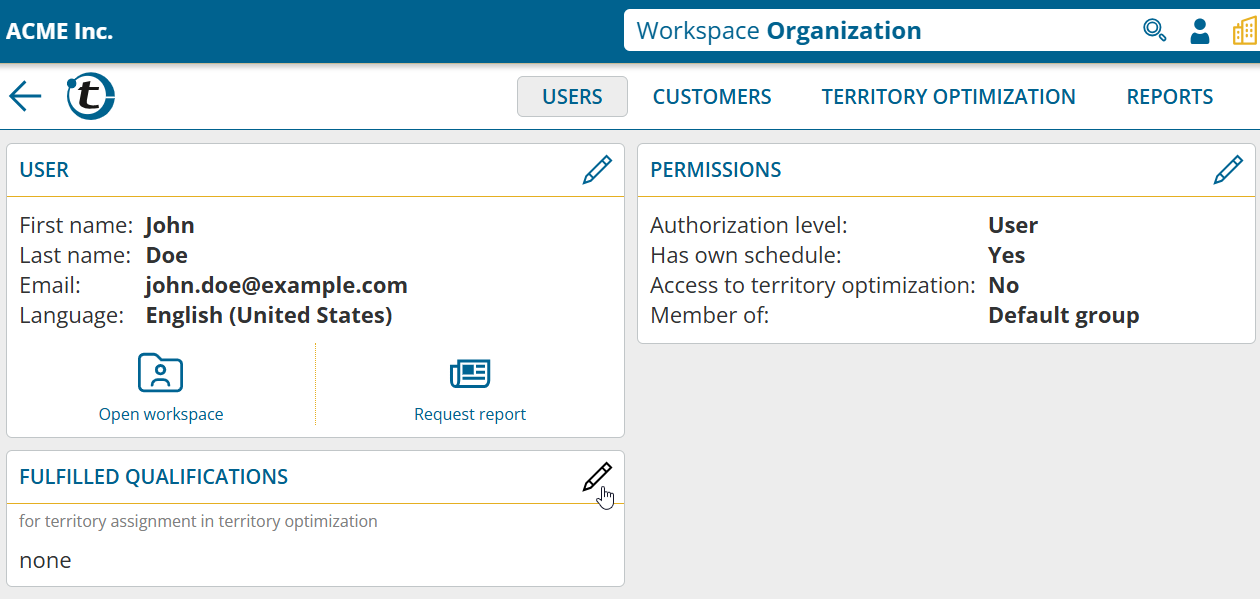
  3. Select the fulfilled qualifications
  4. Click on “Save“.

Alternatively, you have the option to set the fulfilled qualifications for multiple users via Mass editing or the Import. With mass editing, you not only have the option of replacing all qualifications, but you can also add or remove individual qualifications.

In the workspace organization in “Options > Permissions“, use the authorization “Change fulfilled qualifications for territory assignment” to specify whether these changes may only be made by administrators or also by supervisors.

In the extended user search you will find the new filter “Fulfilled qualifications“.

Enter necessary qualifications for customers

As with users, you enter the necessary qualifications for the customers via details page, mass editing or import.

In the workspace organization in “Options > Permissions“, use the authorization “Change required qualifications for territory assignment” to specify whether these changes may only be made by administrators, supervisors or users.

Perform territory optimization with qualifications

Analysis of the initial situation

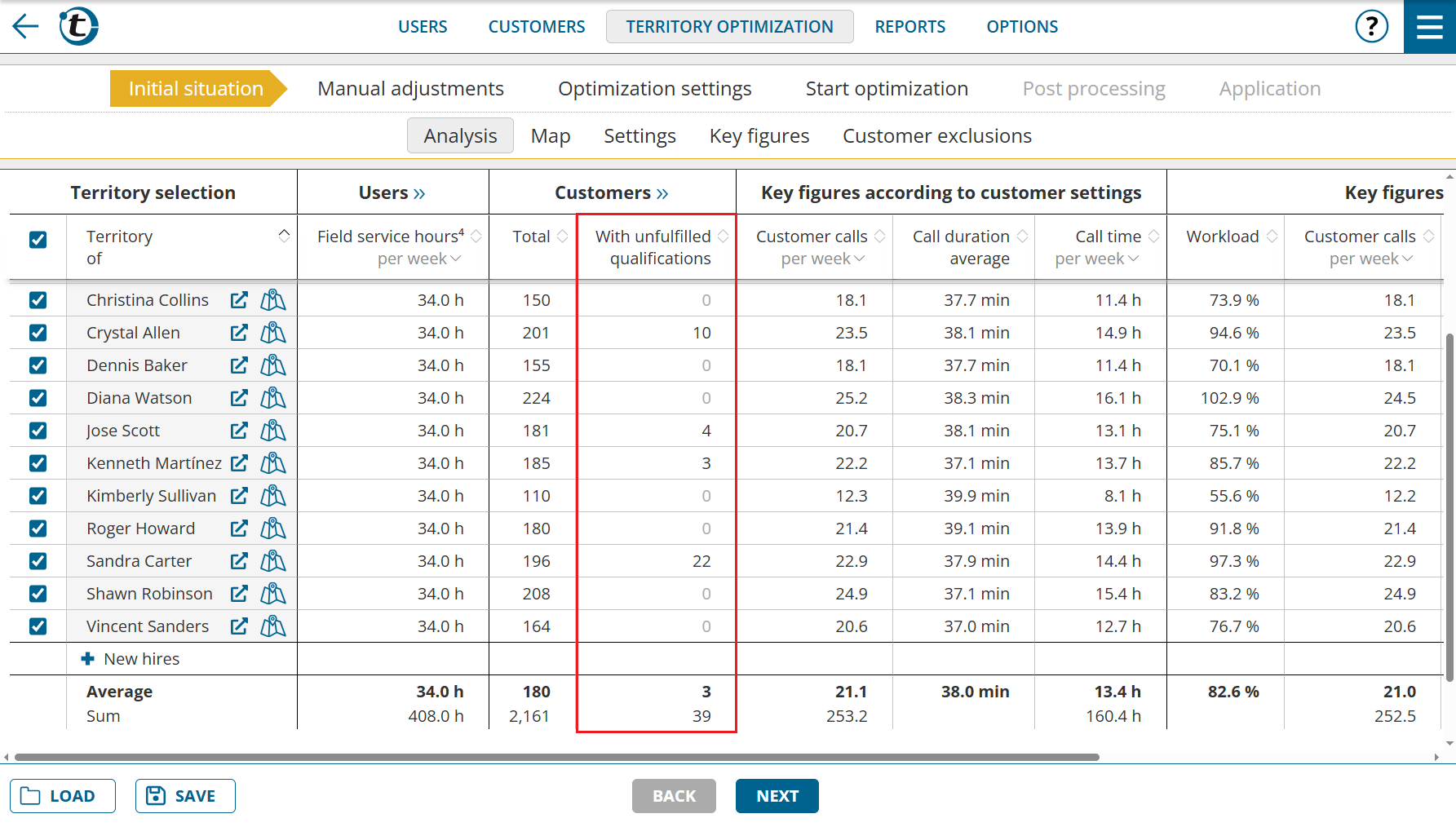
The new column “Customers with unfulfilled qualifications” shows the amount of customers whose qualifications are not fulfilled by the current user. If all qualifications of all customers are met, the column is initially hidden.
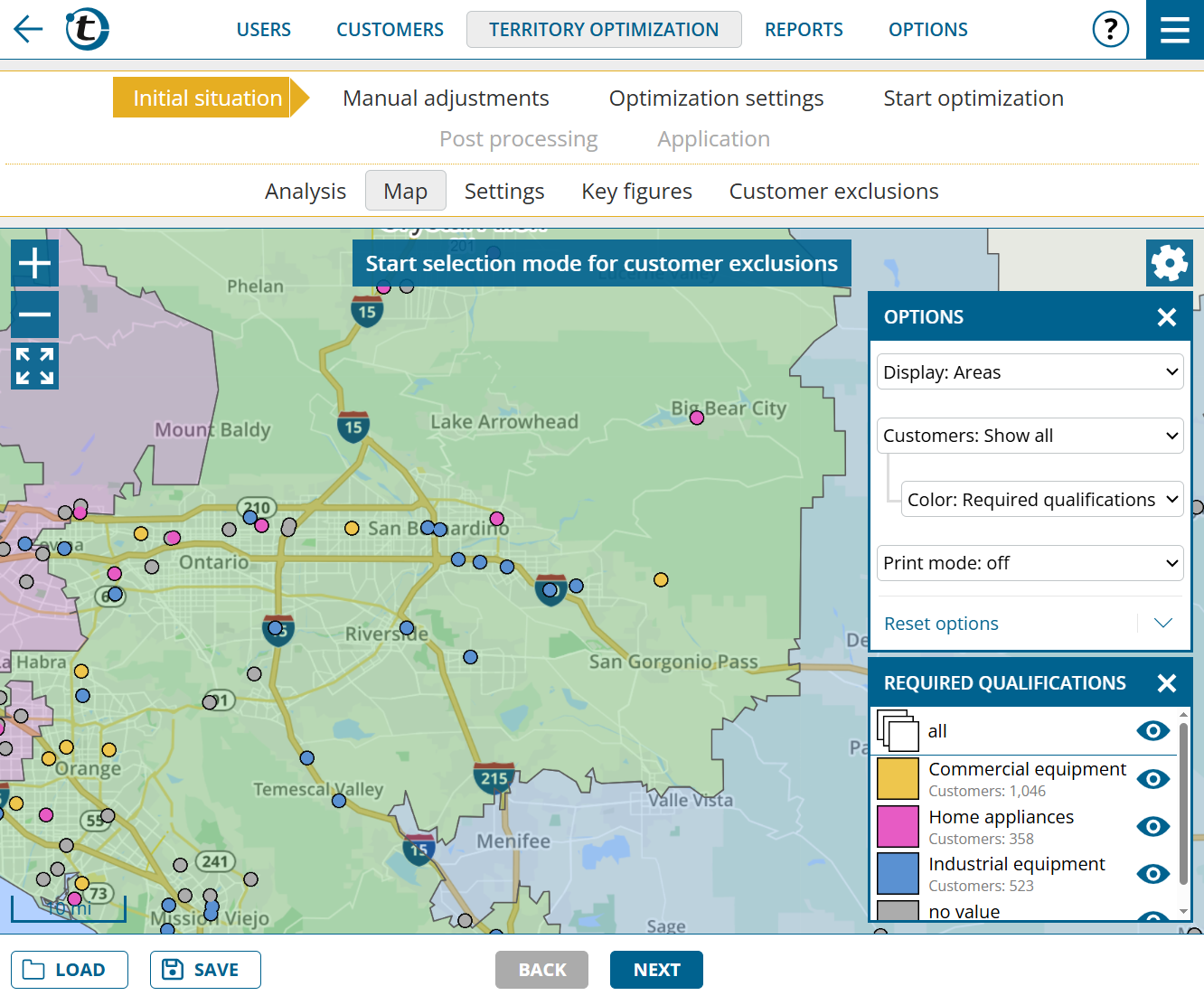
The new coloring option “Color: Required qualifications” is available on the map, which colors the customers according to their necessary qualifications. This allows you to see at a glance in which regions requirements are concentrated.
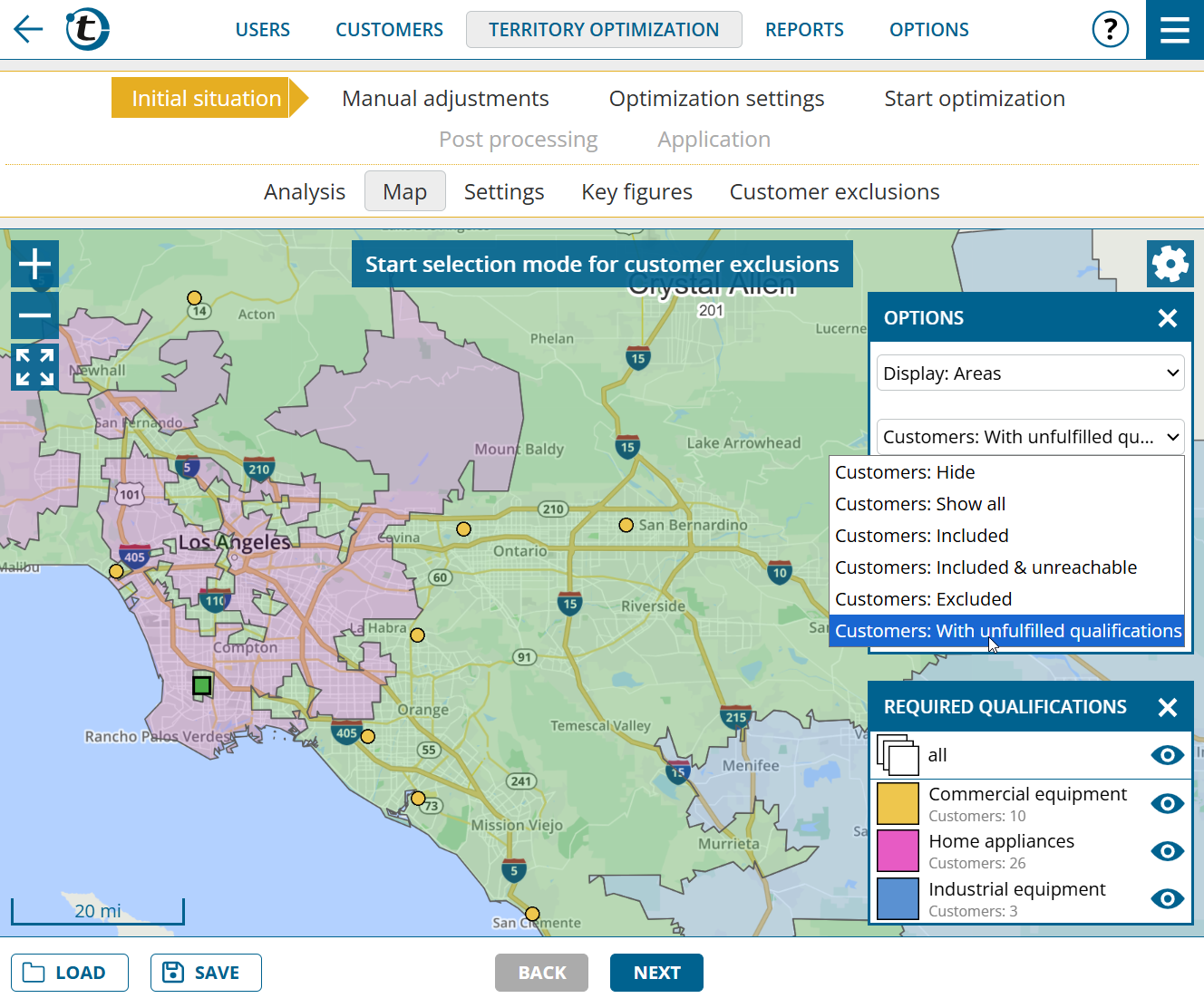
The new filter “With unfulfilled qualifications“, only shows those customers whose qualifications are not met by the current user.
Start optimization

portatour® only assigns customers to users who meet all the necessary qualifications during the optimization.

Note: If you resumed an optimization or loaded a saved optimization in which qualifications were not yet enabled, set “Optimization settings > General > Qualifications for territory assignment” to “Consider” if necessary.

In the results overview, you can see the reduction of customers with unfulfilled qualifications, if there were any.
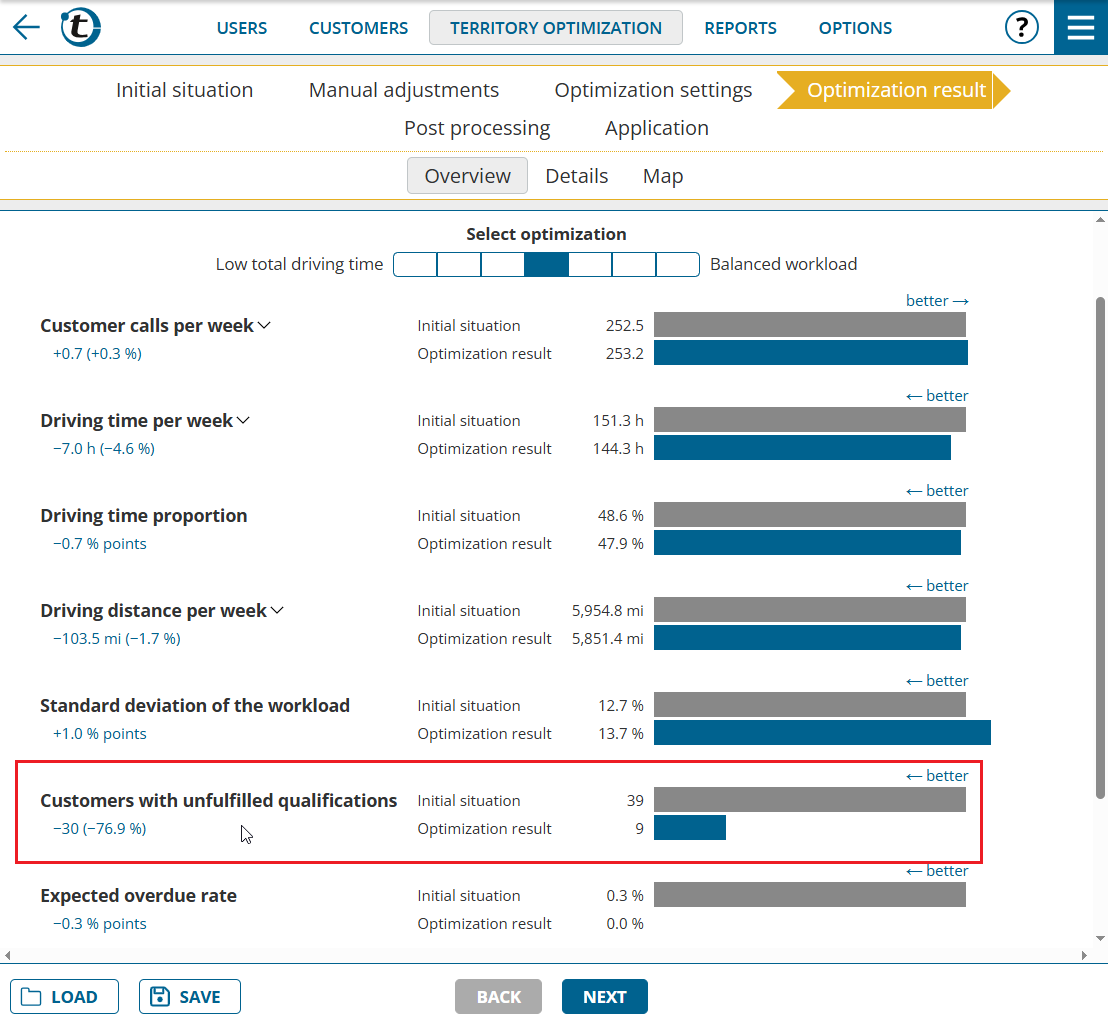
For further analysis, the same functions are available in the table and map as in the initial situation.

Note: If you deliberately want to carry out the optimization without taking qualifications into account, set “Optimization settings > General > Qualifications for territory assignment” to “Ignore“.

Simulate scenarios using manual adjustments

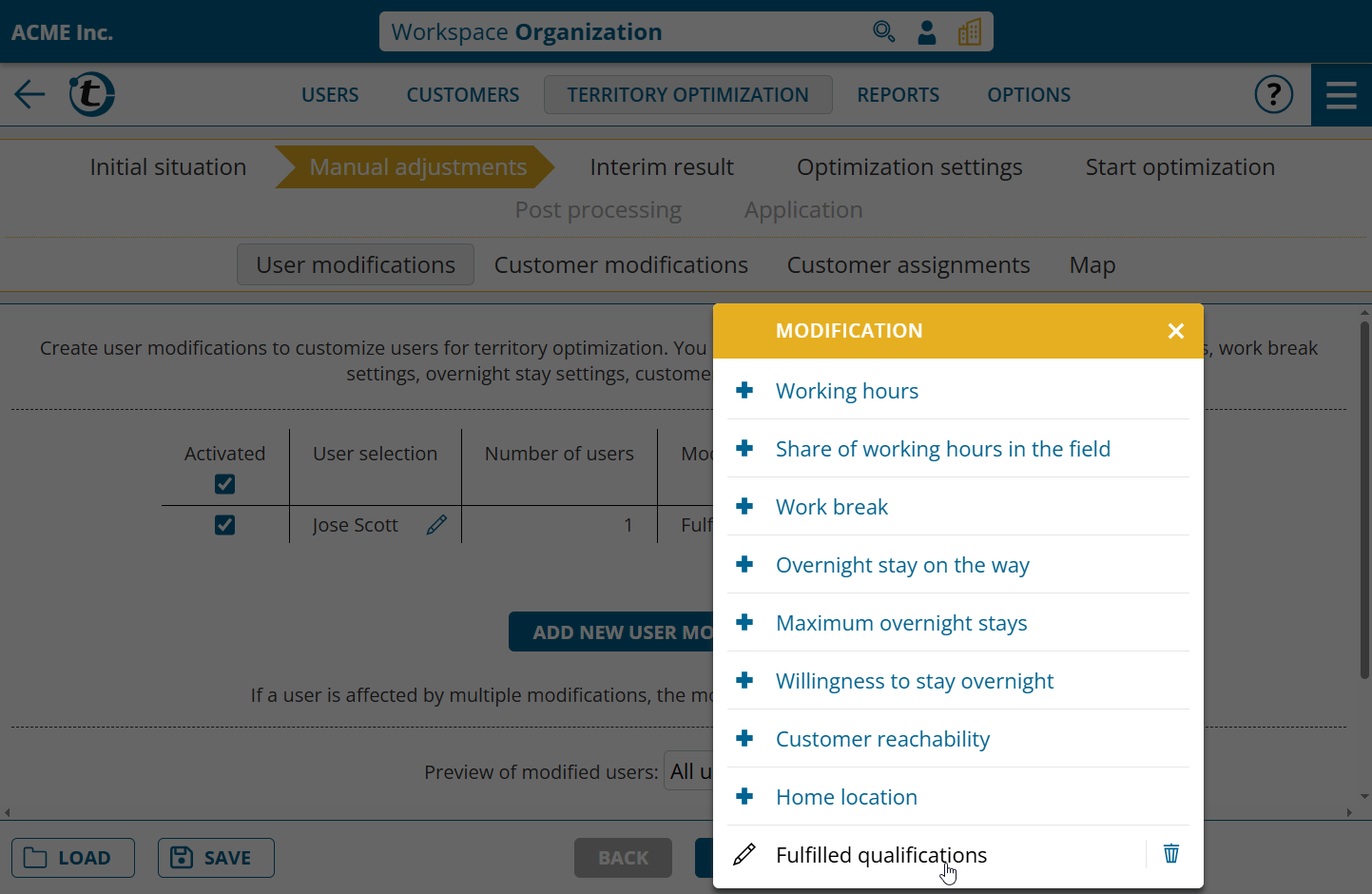
If you want to try out different scenarios without having to change the master data, you can use manual adjustments. This allows you to make specific changes to qualifications required by customers and qualifications fulfilled by users.
Note: Qualifications for territory assignment are not yet available if portatour® is connected to Dynamics CRM as the data source system.

Dynamics CRM Integration: Improvements

This news concerns administrators of company accounts with the data source system Microsoft Dynamics CRM. To take advantage of the improvements, install the latest version of portatour® for Dynamics® 365 v9.0: Download.

Call reports can also be saved in a user-defined entity

portatour® now allows you to save call reports in any user-defined entity in your Dynamics CRM system. This allows you to save reports directly in the entity that your company already uses for its processes instead of using tasks or appointments.

If you would like to use this feature, please get in touch with your portatour® contact person.

Rich text fields as readable text in portatour®

Rich text from Dynamics was previously displayed as HTML coded text in portatour®. portatour® now automatically converts this content into plain text and retains meaningful line breaks. This makes even extensive or formatted content from rich text fields clearer and easier to read.

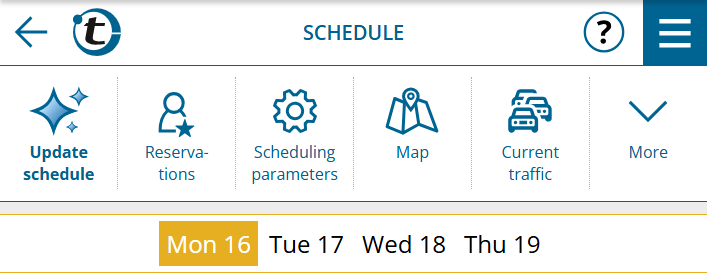
Announcement: New icon for “Update schedule”

Soon, the “Update schedule” button will get a new look. The previous icon with the “Reload” arrow will be replaced by a modern design. This highlights the sophistication of the route planning algorithm and shows that this is not just a simple “Reload.”

The new design can also be found in the menu bar.

The algorithm itself remains unchanged.

Dynamic extension of working hours with many appointments flexible on the day

Have you ever had the case that appointmentsflexible on the day” were not scheduled in the schedule because not all appointments could be accommodatedwithin working hours?

With the update released today, that is now a thing of the past.

From now on, working hours will also be dynamically extended for appointmentsflexible on the day” if this is absolutely necessary. The business hours of customers will continue to be taken into account if any are entered for the respective day.

Appointments flexible in the week and better prioritization

Appointments are crucial when calculating your schedule. You now have the option of scheduling appointments flexibly within a week instead of just on a fixed day. In addition, appointments are prioritized depending on their flexibility.

Appointments flexible in the week

Are you familiar with this? You have agreed with a customer to visit them in a certain week, but until now you had no way of creating a flexible appointment for the week. Instead, you had to create an appointment at a specific time or an appointment “flexible on the day”.

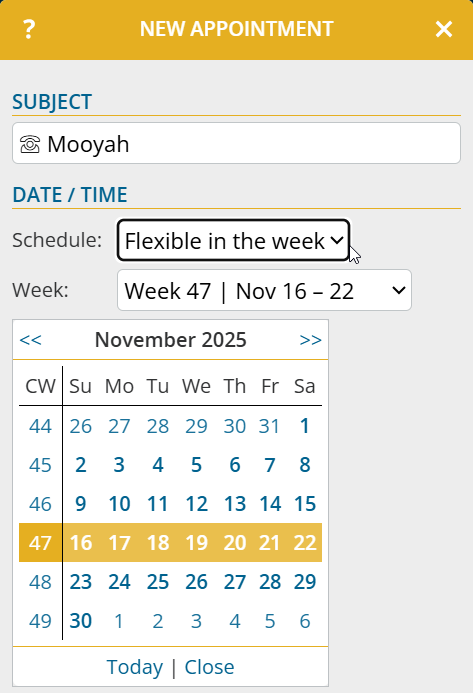
You can now create an appointment “flexible in the week” for a customer as follows:

  1. Open the customer detail page and click on “New appointment
  2. At Schedule, select the option “Flexible in the week” and then the desired calendar week from the list or via the calendar

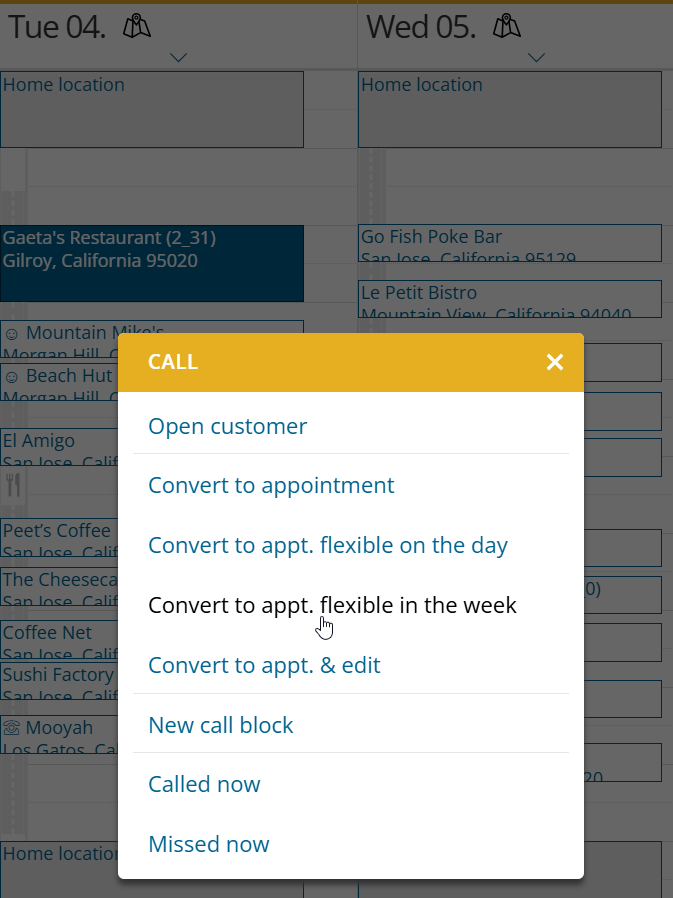
Call suggestions and existing appointments can also be converted into appointments flexible in the week:

  1. Open the context menu of an entry at calendar or schedule
  2. Click on “Convert to appt. flexible in the week

Appointments flexible in the week will be included in the next schedule calculation within the selected week, taking into account your working hours and customer opening hours.

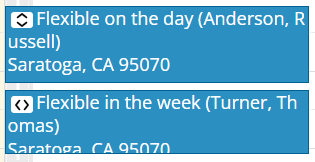
For better differentiation, appointments flexible in the week and on the day are marked with corresponding symbols.

Note: This function is not yet available if portatour® is connected to Dynamics CRM as the data source system.
Appointments prioritized according to flexibility

If appointments with different flexibility conflict with each other or not all appointments can be accommodated in the schedule, the following prioritization will apply in future:

  1. All-/Multiday appointments
  2. on time planned appointments
  3. Appointments flexible on the day and appointments with leeway
  4. Appointments flexible in the week

Reservations and call suggestions are still prioritized lower than appointments.

Improvements to the map

More zoom levels

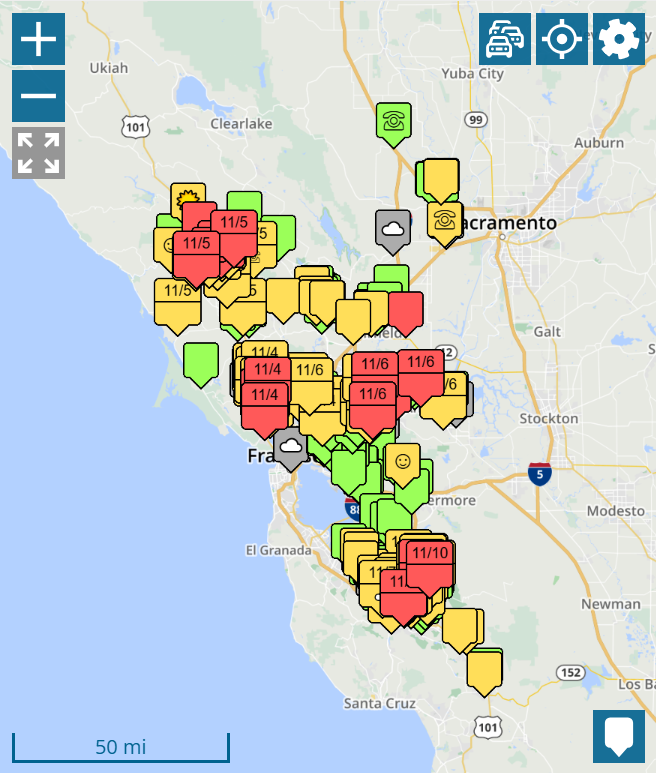
The map now offers additional zoom levels. This makes optimum use of the available screen space during the initial display. In addition, the new zoom levels are also available when zooming via touchscreen or with the mouse wheel.

Display of upcoming customer appointments

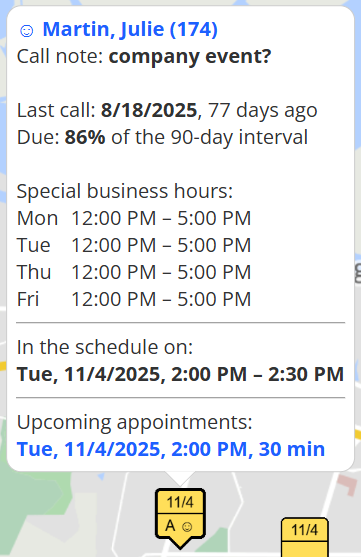
Previously, only those customer symbols for which an appointment had already been scheduled in the schedule were marked with a “A”. From now on, appointments that are further in the future and not yet scheduled will also be taken into account.

You can also see the upcoming appointments in the information bubble of a customer.

Additional information on organization-wide map

This news concerns administrators and supervisors of company accounts with at least two users.

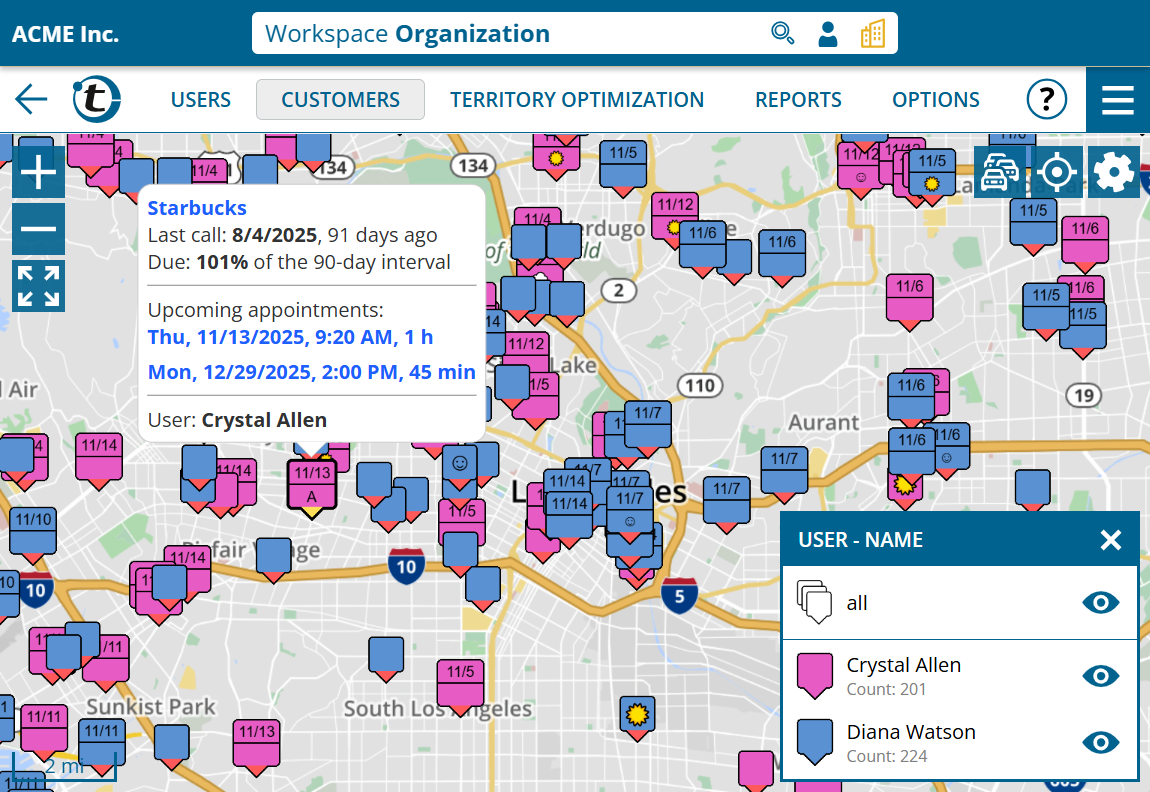
The next call according to schedule as well as upcoming customer appointments are now also shown on group-wide and organization-wide maps.

Geocoding warnings include possible deviation

Have you ever had a geocoding warning but no idea what impact it could have on your schedule? Now you can get more details: Geocoding warnings now include the possible geographical deviation.

This potential deviation is now also determined during automatic geocoding as part of an import and displayed on the geocoding page.

  1. Open the main menu and select geocoding
  2. If you do not yet see a deviation in the geocoding warnings, click the button Geocode problematic addresses again

The warning list is sorted according to the possible deviation. Work through the list from top to bottom.

Subscribe to calendars from Google

Would you like to use appointments and holidays that you manage in Google in portatour® for your customer call schedule without having to enter them manually twice? With the calendar subscription feature for Google released today, you can do this in just a few steps.

The configuration and use is analogous to Subscribe to the calendar from Outlook under “Options” > “Calendar subscriptions” > “add” and then “Login with Google”.