Category Archives: Dynamics-CRM

New Maps May 2020

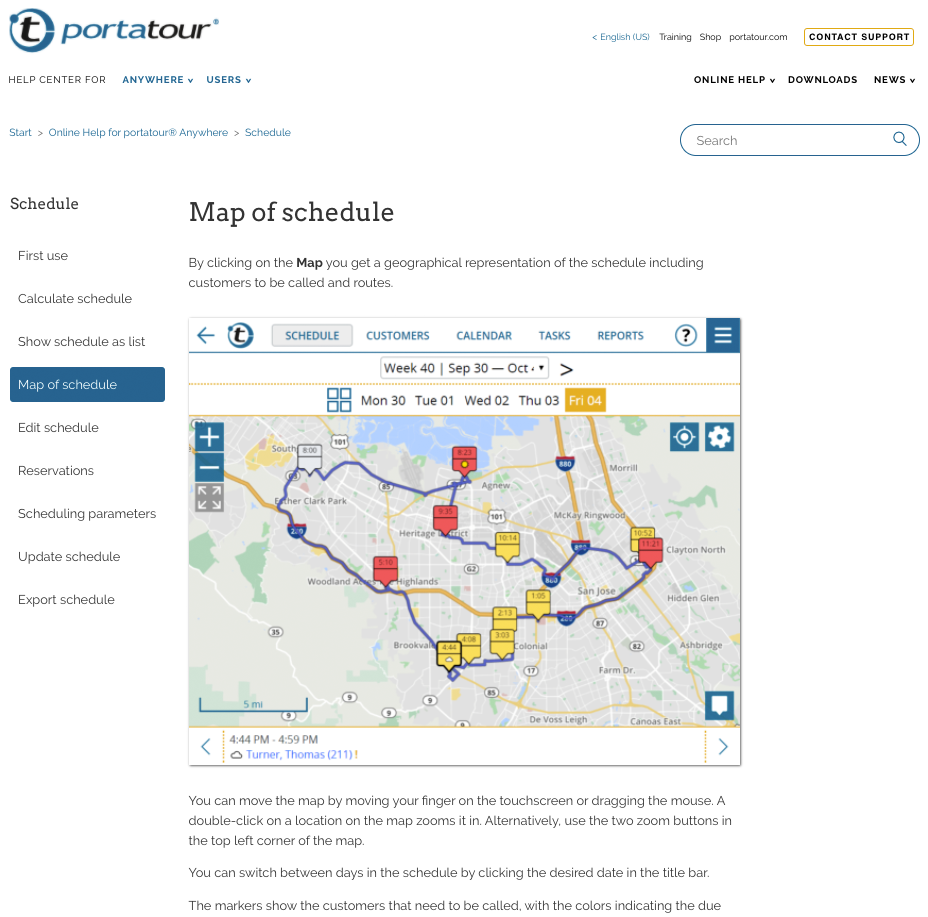
Today we have updated the map data and traffic flow data on our servers.

Changes in the road network and driving speeds may affect driving times between customers, so we recalculated them for you in portatour®. Some users might notice the change when updating the schedule next time.

In addition, when displaying maps in portatour®, the loading times might take a little longer since the map details need to be downloaded to your device again.

Improved Online Help

As of today, new and improved online help for portatour® is available.
Click the question mark symbol in the main menu bar or in the pop-up windows of the portatour® application to open the new online help. Alternatively you can also navigate to help.portatour.com directly.

More content

  • Online help for browsing and searching
  • Video Tutorials
  • Frequently asked questions and their answers
  • Manual as PDF download
  • Contact Support

Improved search

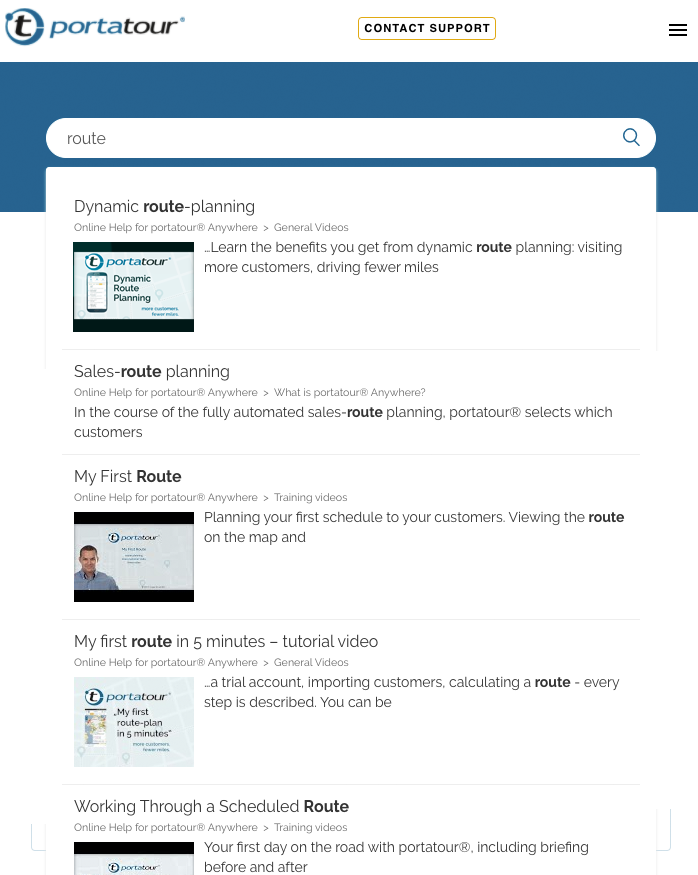
Using the new search function, you can quickly find the articles or videos in the online help that are relevant for you. Simply type in the search terms and the results will immediately appear, sorted by relevance.
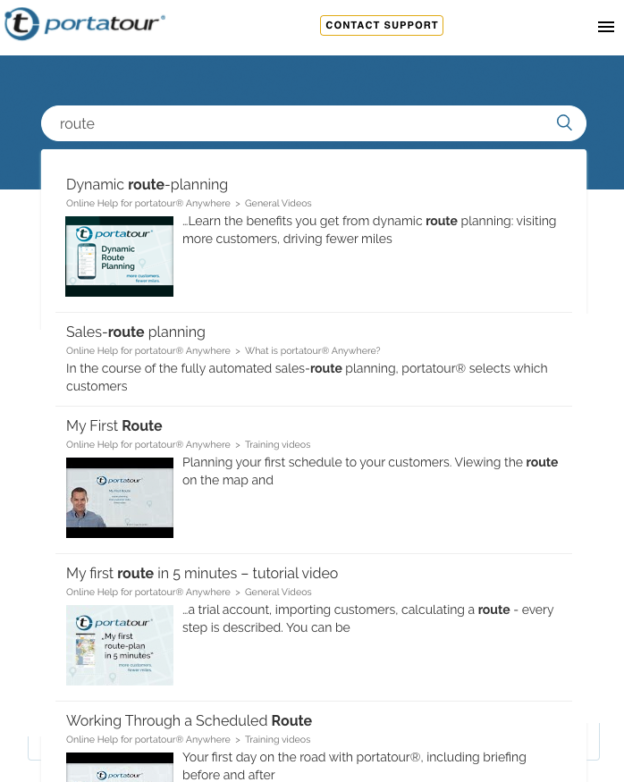
New design

We have given the online help a fresh coat of paint. Both functionality and user-friendliness have been improved.
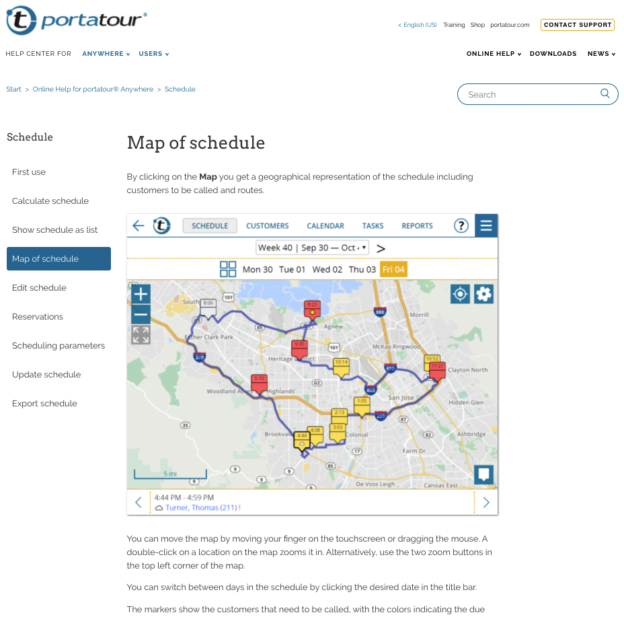
Improved usage on smartphones and tablets

The online help is also now easier to use on smartphones and tablets while on the move.
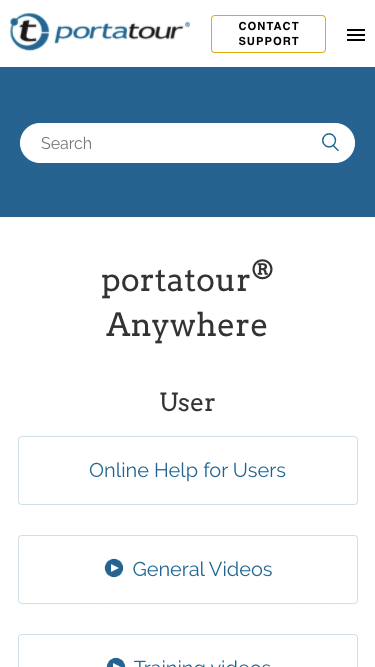
Content provided according to your product variant and authorization level

In the menu (next to Help Center For), select your portatour® product variant (Anywhere, Salesforce, Dynamics CRM, etc.) and your authorization level (user or administrator).
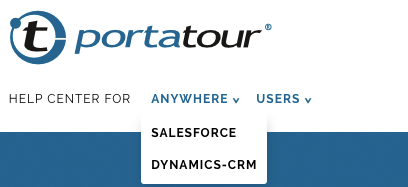
More languages

The range of languages has been extended. In addition to English, German and French, the portatour® Anywhere online help is now also available and updated in Italian, Spanish and Portuguese. When no translation is available, the English version is displayed.

Your feedback

We are constantly working on improving the online help and adding new content. If you have any comments, please send them to feedback@portatour.com You will also find a feedback section under the individual articles. Please let us know whether an article was helpful or what we can improve. Of course we are also happy to receive positive feedback.
We wish you much success with the new online help!

Search for appointments, tasks, reports and users

One of the most frequently used functions in portatour® is the customer search. It is available as quick search, extended search and saved search.

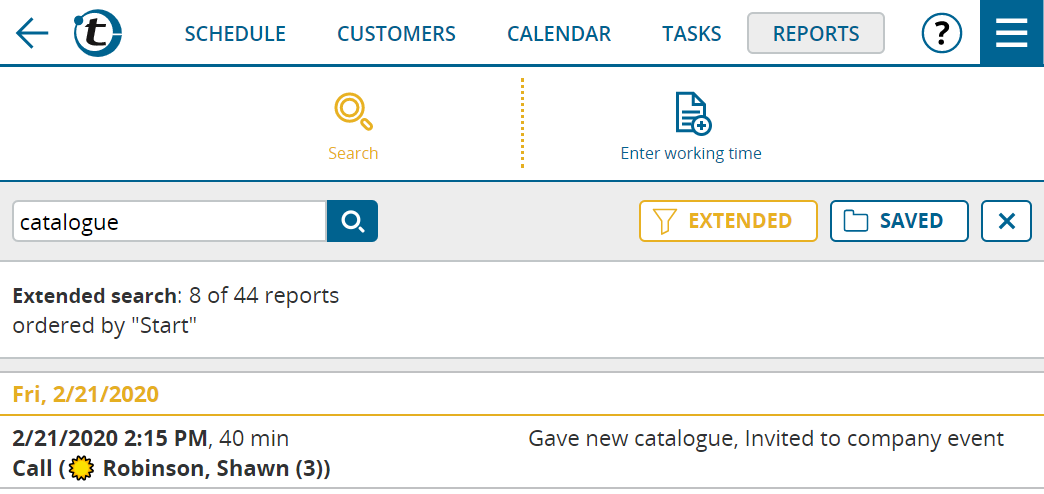
As of now the same functionality is also available for appointments, tasks, reports and users. One difference: whereas in the customer list the search function is always displayed, in the other lists you have to switch to the search mode by clicking the magnifying glass symbol. Another click on the magnifying glass symbol ends the search mode; you will see the standard view of the respective list again.

What else is new in the search?

  • The symbol for the extended search is now a filter symbol instead of the configuration wheel symbol.
  • If an extended search or a saved search is currently active, this will be easily recognizable by the yellow color of the respective button. In addition, a new button with an X symbol is displayed to the right of it, with which you can end the search and return to the standard view.
  • If an extended search or a saved search is currently active, you can also perform a quick search, which will narrow down the search result even further. Up to now, every quick search has ignored previous searches.

Hints for the quick search

For those of you who don’t already know, in the quick search, you can enter multiple search terms in the search field. For example, if you enter “Turner Oakland” in the search field, all customers containing “Turner” and “Oakland” will be found – in this example in the name and the city. The words do not have to be written out in full.

Additional information

  • The search also affects the export button below the list. When a search is active, you can choose whether to export only the rows found or all rows.
  • You can search for appointments by clicking the list symbol at the top right of the calendar and then the magnifying glass symbol for the search.
  • In the reports list you will find the three well-known functions “Clock in”, “Clock out” and “Report day off” via the new button “Log working time”.

Find hotels through Booking.com

If you are planning routes with overnight stays on the way, the new function “Find hotel” can be helpful.

You will find this function in the following places in portatour®:

  • In the schedule by clicking an overnight stay suggestion or overnight stay appointment
  • Clicking an overnight stay suggestion or overnight stay appointment in the calendar
  • In the appointment details view of an overnight stay appointment

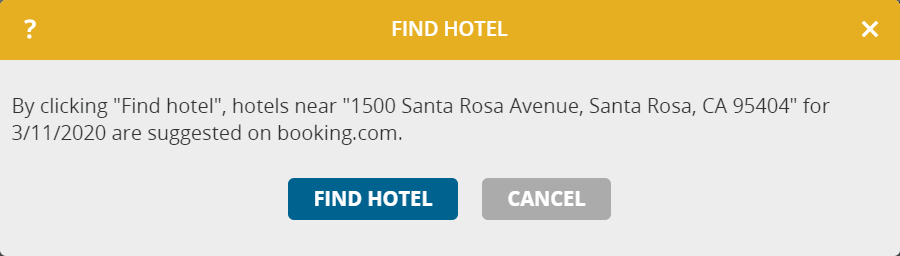
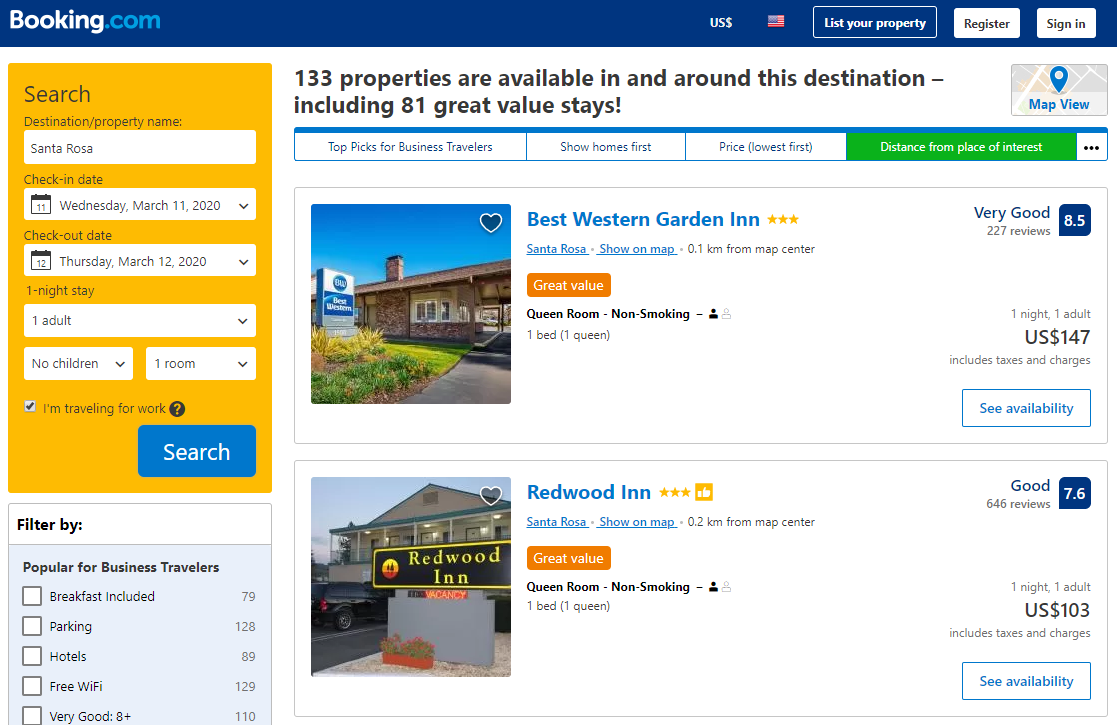
When clicking “Find hotel”, you will be forwarded to the Booking.com website in a new window where hotels nearby your overnight stay location will be suggested. You will see the availabilities and prices for the date of the overnight stay. The room search uses the criteria “1 adult” and “business person”. You can set further filtering criteria on Booking.com.

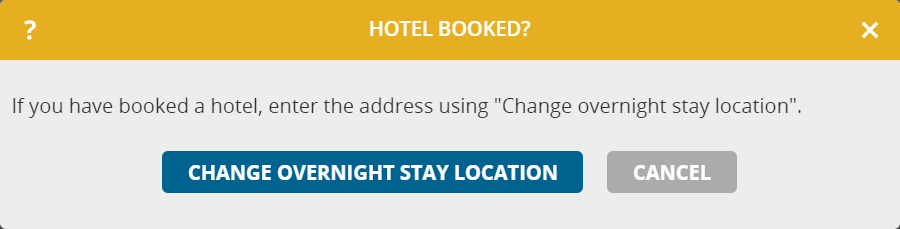
After you have booked a hotel on Booking.com, use the function “Change overnight stay location” in portatour® to enter the hotel address. This will create a new overnight stay appointment that replaces the old overnight stay suggestion or overnight stay appointment.

Hint: If you would like to stay overnight at a hotel more often or if you want portatour® to suggest this hotel on its own for overnight tours, enter it in portatour® by clicking main menu > My Places > New accommodation. Up to 25 accommodations are possible.

Move days in the schedule

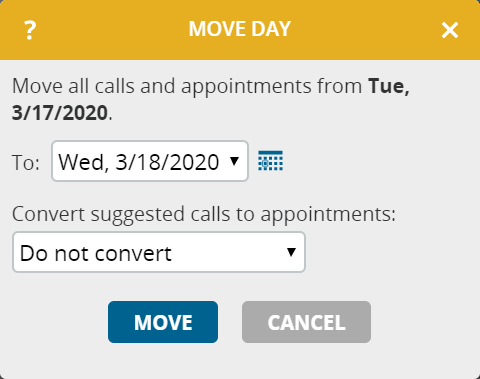
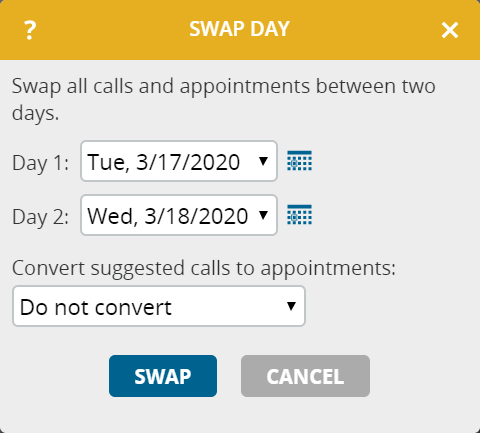
As a user of portatour®, have you ever been faced with the following situation? portatour® has suggested a route for one day, which you would like to follow in exactly the same way, but for whatever reason you would rather drive that route on another day? Then you will enjoy the new functions “move day” and “swap day“.

You can find these new functions in the schedule and in the calendar:

In the schedule, switch to the desired day. There, scroll down to the bottom, click More and then the menu item Edit day.

In the calendar, click the header of the day, then the menu item Edit day.

A window opens for you to select the target date.

In the case of “Swap day”, select both days to be swapped.

Note that moved or swapped call suggestions are discarded when the schedule is updated. To fix these call suggestions on the desired day, they must be converted into appointments. In the selection box, choose between fixed appointments, where the time is kept exactly the same, or appointments flexible on the day, where the time remains flexible.

Bear in mind

  • Only those days that start and end at the home location can be moved or swapped. This means that the day may not have an overnight stay on the way. Likewise, no calls or appointments may have already been completed for that day.
  • If you select a target day in “Move day” where there are already suggested calls, these will be removed. Appointments are retained in any case, but this can lead to conflicts. In such cases, you will be warned in time and asked whether you want to move the day anyway. Consider whether a swap would be better in such cases.
  • Furthermore, you will be warned if a customer call on the target day could not be scheduled, e.g. due to restricted business hours, call blocks, customer holidays or scheduling restrictions.

New maps January 2020

We have just updated the map data and traffic flow data on our servers.

Changes in the road network and driving speeds may affect driving times between customers, so we recalculated them for you in portatour®. Some users might notice the change, when updating the schedule for the next time.

New maps August 2019

We have just updated the map data and traffic flow data on our servers.

Changes in the road network and driving speeds may affect driving times between customers, so we recalculated them for you in portatour®. Some users might notice the change, when updating the schedule for the next time.

June 2019 Update of portatour® for Dynamics CRM

The latest update of portatour® for Dynamics CRM is now available for downloading. In addition to many internal improvements, the update provides the following functional enhancements:

  • Increase of the limit from 1,000 to 3,000 customers per user. More information about this improvement can be found in this blogpost regarding portatour® Anywhere.
  • Use of geotagging for call reports also in combination with Dynamics CRM. As an administrator, you can activate this function in the CRM under portatour® Administration > Organization Settings > Reporting.
    For more information on geotagging, see this blogpost regarding portatour® Anywhere.
  • New setting option to establish in which context the synchronization with portatour® Anywhere should technically run: as the affected user (=field representative), as administrator (the one who installed portatour®) or as SYSTEM. You can find the setting in the CRM under portatour® Administration > Synchronization Settings > Options. We recommend the setting “User”, as this means the user is entered as the creator of new data records in the CRM. If there are errors due to the conversion during synchronization, make sure that the user has all necessary rights.

Major map update 2019

While map updates in recent years have “only” ever updated the map material including traffic flow data, there is much more in today’s software update. In addition to updating the data, we have invested a lot of programming effort in the map display, address geocoding and route calculation.

The advantages for you as a user

  • Faster geocoding when importing customers
  • More accurate geocoding even with incorrect address spelling
  • Faster schedule calculation when the GPS location is used as the departure point
  • More realistic travel times in the schedule
  • Visually more pleasing presentation of maps
  • Faster switchover from beelines to the route view on the map

More realistic driving times in the schedule

Since 2015, portatour® has used historical speed data to calculate driving times. This data is collected by navigation systems and mobile phone providers by measuring the movement data of millions of drivers and is made available for the respective road sections.

What’s new with today’s update is that portatour® estimates driving times to be considerably slower than previously on those road sections where traffic flow data often show traffic jams or heavy traffic.

As a result, roads with a high probability of traffic jams are avoided when calculating the schedule or are planned with longer travel times than previously. The schedules are therefore even more realistic and robust for dealing with unforeseen traffic situations.

You will already notice a difference with today’s first schedule update.

Recommendation: Set Driving Speed to “normal”

If you have set the “Driving Speed” to “slower” in the portatour® Anywhere Options, we recommend that you now reset it to “normal” so that portatour® does not estimate unnecessarily long driving times.

Additional information

  • This update currently only affects customers from German-speaking countries (i.e. Germany, Austria, Switzerland) and English-speaking countries (i.e. USA, Canada, Britain, Ireland, Australia). Other countries will follow shortly.
  • If you use portatour® in combination with Salesforce, for technical reasons, the maps will be updated together with the next release of the portatour® for Salesforce-App. We’ll be sure to let you know!

Your feedback is welcome!

We hope you enjoy this software update and look forward to your feedback at feedback@portatour.com.

New maps 2018

We have just updated the map data and traffic flow data on our servers.

Changes in the road network and driving speeds may affect driving times between customers, so we recalculated them for you in portatour®. Some users might notice the change, when updating the schedule for the next time.