Category Archives: Anywhere

portatour® meets geomarketing: map with individual symbols and colors

True to the proverb: “a picture is worth a thousand words”, we have extended portatour® by two features for improved visualization of customers on the map.

Individual customer symbols

To better identify customers on the map, you assign meaningful symbols to your clients. This way you see at a glance, for example, the revenue potential of the customer or the industry.
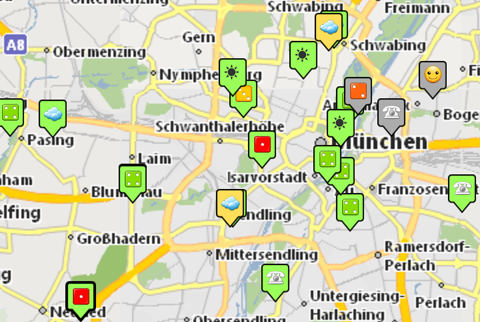
Landkarte mit Kundensymbolen

To set the symbol, open the customer, click on the pencil above the address, and then click the new menu item “Symbol”. A text box will appear allowing you to enter any 1-2 characters. Click “Show symbol table…” for a choice of different symbols.
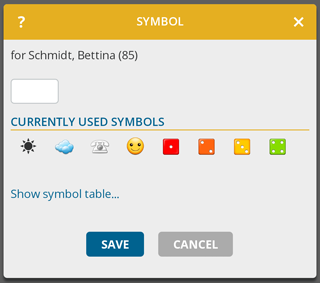
Edit Customer Symbol

Tip: Enable the “Selection Mode” to select multiple customers. This option can be found below the customer list. Then click “Edit Selected” to set the same symbol for multiple customers.

Consequently, the client symbol appears not only on the map, but at all places in portatour® where the customer name is shown, for example in the schedule, in the customer list or in the portatour® report.

Technical background information: portatour® uses the Unicode character standard to display and store symbols. Unicode is also used for the “smileys” appearring at many places in the internet. The appearance of the symbols varies depending on the device, operating system, installed fonts and browsers.

Note for Outlook and Salesforce-users: Setting the symbol is also possible in Outlook and Salesforce. Go to the customer call settings of a customer, you find the symbol at the bottom.

Color of a customer on the map

So far there was only one criterion for the coloring of the customers on the map: the current call urgency shown in the traffic-light colors red/yellow/green.

Now it becomes colorful: in the map view, click on option-symbol (“cogwheel”) and you can set the coloring yourself. Choose from both the built-in portatour® fields – call interval, call duration, etc. – as well as from custom fields that you can create yourself. For example, revenue or industry can be used.

portatour® automatically takes care of grouping and coloring on basis of the defined criterion. On the bottom-right of the map you will find the map legend icon. Click it to see the color mapping.
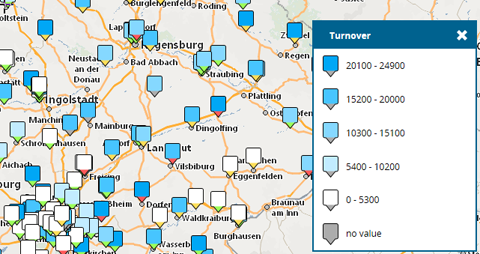
Map with Turnover

The call urgency of a customer is still visible: the lower part of the customer-marker on the map shows – as always – the urgency via a red / yellow / green color indicator.


We wish you a productive time using these new features and are looking forward to
your feedback, which you can send us to feedback@portatour.com .

P.S.: Users of portatour® for OutlookSalesforceDynamics CRM or Connector must first install the latest version of portatour® to access the new functionality. Click the download-link or contact your administrator.

Data analysis in Excel 2013: new OData-API opens up new reporting possibilities

Most computer users are familiar with Microsoft Excel. Very few know about “PowerPivot” – an AddOn to Excel 2013 offering various possibilities to analyse and visualize large amounts of data.

Excel Charts

Do you want to know, how often which customer was visited during a certain period? How the effective visit count correlates with the revenue of a customer? How the amount of total visits compares to the amount of visits with a sale? And how these figures evolve over the course of time? These are just four out of many possible questions on which you now can get an answer based on PowerPivot in combination with portatour®.

Your organization has two or more portatour® users? You are portatour® administrator? You have Excel 2013 installed on your computer? Then you are all set to enjoy the new OData Excel interface. With the press of a button all your data (customers, appointments, and reports) of all your users can be downloaded into Excel to be analyzed in PowerPivot. Excel Version 2013 is required – older versions are not supported. Setup instructions for administrators can be found in portatour® Anywhere menu at Options > Excel Data Analysis.

Note: Using pivot tables and charts in Excel requires experience in data analysis. If this is new to you, ask your IT department or your IT support. For self-studying, blog posts, video tutorials, and books can be found. Start by searching in Google, YouTube or Amazon for “Excel Power Pivot”. Please understand that we can not provide support for Microsoft Excel.

We wish you great success and new insights into your data. We are looking forward to your feedback which you can send to feedback@portatour.com

Extended data-import & export

Almost 6 months ago, we added an interface that allows automated data import & export (see our news post). Since then, we received a lot of positive feedback from users – at the same time we received feature requests. We have taken these up and released a first major expansion of the portatour® import & export interface.

Importing data including deletion

When importing customers – both through the user interface or via the API – the new import mode “update including deletion” deletes all those customers from the portatour® database that no longer exist in the import file. Thus, it has become easier to synchronize the state in portatour® with the state of your CRM/ERP system. As usual, before each import process, a restore point is automatically created to avoid data loss. Customers added manually by the user to “my places” are never automatically deleted.

Mass updating of individual customer fields simplified

Until now, if you wanted to mass-update one field of all your customers (for instance, the annual revenue), it was necessary to provide all required fields in the import-file. Especially the address fields were needed to eventually create new customers.

Now only one key field is required and the field with the new data values. For example: the customer number (key field) and the field to update (annual revenue) are enough to import data. If the key is not found in the portatour® database of the user, the row is ignored.

Exporting data of all users in one file via API

Exporting data (customers, appointments, reports) via API was only supported on a per-user basis. This restriction has fallen. Omit the parameter “userEmail” to get the data of all users as a single file. The file contains additional columns to identify the corresponding user. Note that the amount of data grows with the number of users and the download may take several minutes to complete.

New Maps “Summer 2014”

We have just updated the map data for Australia and Europe.

Changes in the road network may affect driving times between customers, so we recalculated them for you in portatour®. Some users might notice the change, when updating the schedule for the next time.

Two new settings for fine-tuning

We added two new parameters to portatour® that help you fine-tune the generated routes to your specific needs even better:

Adherence to business hours for the entire duration of the call

So far portatour® cared that the start of the customer call is within the business hours of the customer – i.e. you start the call just in time before they close. portatour® has been assuming your call can last beyond business hours.

This can be problematic if your visits have a long duration. Then, there is a high risk that your visit stretches far beyond the business hours.

With the new setting “Adherence to business hours” in Options > Call Parameters > Scheduling Parameters you can define how portatour® should treat the business hours. Choose from the previous behavior (only the “Start of call” has to be within business hours) or the new behavior: the “Entire call” has to be within the business hours.

Note that choosing “Entire call” will leave less time for customer calls and therefore fewer calls will be scheduled. Especially lunch breaks of customers reduce the available time for calls significantly.

Preferred adherence to the call interval for important customers

As a user of portatour® you know that you can control how often a customer should be scheduled for a call by changing the call interval. For example, a customer with an interval of 30 days will be scheduled to be visited regularly once a month.

This works well if your territory is “properly sized” – i.e. it is realistic to visit all your customers within the desired call interval under consideration of your working time and travel time.

In case your area is oversized – that is, you have too many customers or too short call intervals – then it will be not possible to comply with the configured call intervals of the customers. The calls will take place late. However, portatour® adheres to the relations, i.e. a 30-day customer will still be visited twice as often as a 60-day customer, just not every 30 days, but later.

With the new setting “Interval adherence” in the Scheduling parameters of a customer you can switch important customers from “Normal” to “Preferred“. portatour® automatically takes care that for customers with a preferred interval adherence, exceeding the call interval is avoided – even if your territory is oversized. This is managed by portatour® by adding “internal reservations” for these customers once the call interval has been reached or exceeded.

Two important notes on this:

  • Use sparingly! Set the “preferred interval adherence” only for your most important customers where you can not tolerate delaying the call. As a rule of thumb, we recommend 20% of your periodically visited customers at maximum. If you prefer too many customers, the desired effect is lost because too many reservations can’t be included in the schedule. Additionally, the driving distance optimization suffers.
  • Make sure that your territory is properly sized. Request a portatour® report and evaluate it. In section “Structure of customers” under heading “Classification of my customers per call interval” you find the “Necessary calls per day to satisfy call interval”. If this value does not correspond to reality, adjust the number of customers or the call intervals.

p.s.: Users of portatour® for OutlookSalesforceDynamics CRM or Connector must first install the latest version of portatour® to get the two new settings (click the links for the download area). If necessary, contact your administrator. 
New Maps 2014

We updated the map data for North America (USA, Canada, Mexico) on 26th May 2014 (today).

Changes in the road network may affect driving times between customers, so we recalculated them for you in portatour®. Some users might notice the change, when updating the schedule for the next time.

Calendar with collision warning and one-click update

Everyone who often schedules fixed appointments with customers will be delighted by having an easier workday thanks to the newest update of portatour® Anywhere.

Immediate Collision Warning

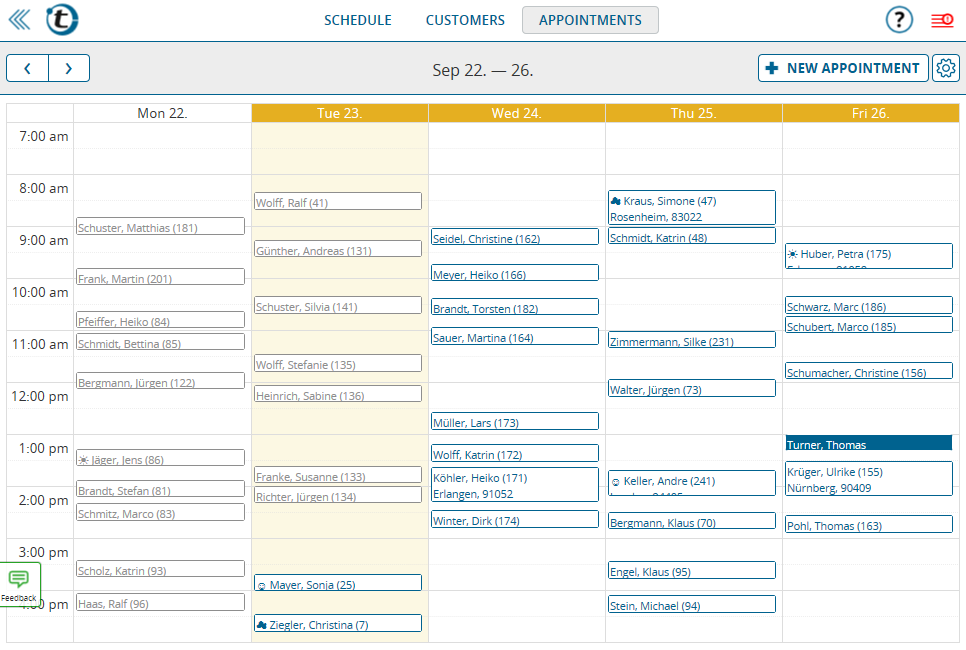
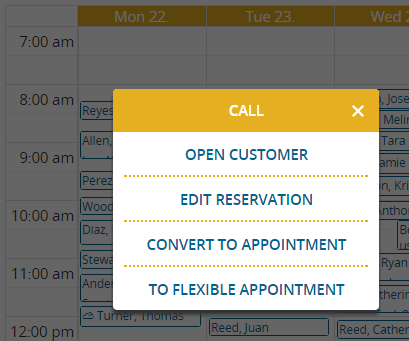
Right after saving an appointment, portatour® verifies if the appointment collides with another appointment. This includes caring for the driving time between appointments. You get notified about colliding appointments by a red flash symbol that is shown wherever you see a colliding appointment in portatour®.

Terminkollision-EN

One-Click Update of the Schedule

Up to now, after changing an appointment or creating a new one, it took some effort of navigating and clicking to update your schedule and see the new situation including the changes.

Now this is a single click: portatour® detects that your schedule is “outdated” when you added or changed appointments in the calendar. Then, the portatour®-logo in the menu turns into a red “update schedule” button. Click it and the schedule will be re-calculated.

New or changed appointments will be shown red in the calendar until they are reflected correctly in the schedule.

Plan-Aktualisieren-Erinnerung-Breit-EN

Further Small Improvements

  • Appointments, that were automatically shortened because of a collision are shown in yellow color in the calendar.
  • Days that have been affected by the schedule calculation are drawn with an orange background in the calendar.
  • If space allows, the calendar shows ZIP code and city of the scheduled visits.
  • When you are at the customer or appointment-view, a new “Calendar” button navigates you to the calendar quickly.
  • The red “update schedule” button in the menu also appears, when you add reservations for customers (“include in schedule” button at the customer view). Once you clicked “update”, you see the call date & time portatour® suggests for the customer.

We are looking forward to your feedback to  feedback@portatour.com

portatour® Anywhere now available as App for Android

Everyone with an Android smartphone or tablet, listen up: starting now, you can use the new portatour® app which offers the following advantages compared to opening portatour® in your web-browser:

  • More screen-space for portatour® by removing the browsers’ address-bar 
  • Automatic retries of data transfers when the connection is unstable
  • Import customers directly from your phones’ address book
  • Online help integrated on every page
  • Quickly launch the app using the app-icon on your smartphone or tablet

Start today and download the portatour® route-planner from the Google Play Store. Requires Android Version 4 or higher. To login, enter the same username and password you are already using for portatour® in the web-browser.

The app still requires an active data connection (we are planning an offline-version).

We are looking forward to your feedback which you can send to feedback@portatour.com or enter directly within the app by pressing “Feedback”.

p.s. One more thing: if you like portatour®, please add a 5-star-rating in the Play Store. Good ratings lead to more downloads, more users and more customers, which greatly speeds up development and new features for portatour®. Additionally, it makes our developers really happy and proud 😉

Automated Data-Import & Export via API

Good news for all companies who are using portatour® Anywhere and want to import and export their data regularly. Read on if you have 2 users or more and your data’s origin is not in an already supported system (Outlook, Salesforce, Dynamics CRM, Connector).

Using the new portatour API (“Application Programming Interface”), you can make automated data exchange with other systems quick and easy.

At this time, the API supports four methods:

  • Customer import (creating new customers and updating existing records)
  • Customer export
  • Appointment export
  • Call report export

By providing these methods, the API mirrors the import/export functionality that is available in the user interface of portatour® Anywhere.

The API (and the documentation) is available for companies with 2 or more user accounts and only visible to users with administration rights. You can find the documentation in the portatour® Anywhere menu-item Options, below Organization when you click API. The documentation is in English and written for IT-administrators and programmers.

Data-import and -export is file-based. You can upload and download Excel, CSV or ODS files using HTTPS GET and POST requests, which you can run using the free open-source tool cURL (http://curl.haxx.se/) on any operating system on the command line. Automating these operations is easy using a batch file or shell script.

We wish you a great time automating and are looking forward to your feedback which you can send to feedback@portatour.com.

Recurring appointments now also available in portatour® Anywhere

Starting today, managing your calendar in portatour® Anywhere is more convenient: you can now create recurring appointments.

When creating or editing an appointment, you will find a combo box “Recurring“. It makes the appointment recurring and sets the rules for repetition.

2013-12-06 Serientermin EN

Here are three typical use cases for the new recurring appointments:

  • Each month every 1st Friday from 08:00 to 12:00 there is a sales meeting at the company office for all sales reps.
  • A customer needs to be visited every 2 weeks, always on Wednesday. The time is not important (set Schedule to “Flexible on the day”).
  • Each year, a public holiday is on the exact same date.

More details on how recurring appointments work:

  • Entering a date into the “Until” field is optional. If you don’t set it, the recurring appointment will be repeated until you delete it.
  • The calendar will only show recurring appointments for the next 12 months due to technical reasons. Don’t worry – the appointments will be repeated as configured.
  • As you may have experienced with other calendar software (Outlook, Smartphone, …), with portatour® you can also delete or change single appointments from a series of recurring appointments. When editing an appointment out of a series, you will be asked whether you want to edit a single appointment or the whole series.

We wish you a productive time using this new feature and are looking forward to your feedback, which you can send us to feedback@portatour.com .

p.s. Users of portatour® in combination with a source-system – such as Outlook, Salesforce, Dynamics-CRM, or Connector – do not see the recurring-option for appointments in portatour® Anywhere. These users can – as before – use the recurring-option of their source system.