Category Archives: Anywhere

Extended permission system

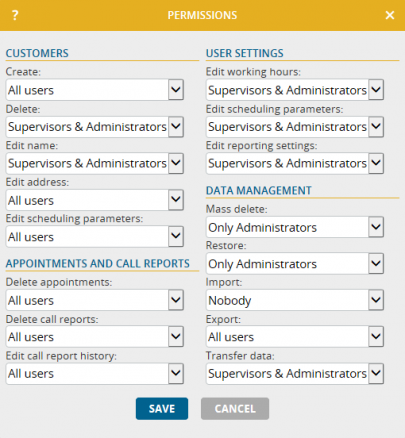
Companies who have used portatour® with two or more field reps already know the classification of users into the authorization levels “user, supervisor and administrator”. With today’s update of portatour® you can now toggle access to over 15 portatour® program features based on the existing authorization levels.

Manage Permissions

This is where you administer permissions:

  • If you are the administrator of a portatour® Anywhere account with two or more field reps, click Menu > Options > Permissions.
  • If you are the administrator of portatour® for Salesforce, install the latest version (download for Salesforce) and then administer the portatour® permissions in Salesforce via portatour® > Options > Permissions.
  • If you are the administrator of portatour® for Dynamics CRM, install the latest version (download for Dynamics CRM) and then administer the portatour® permissions in Dynamics CRM under Settings > portatour® Administration > Anywhere permissions.

This is the effect of restricted permissions:

  • If you set a permission to „All Users“, the feature can be utilized by users, supervisors and administrators. This is the default setting. No restriction is applied.
  • If you set a permission to “Supervisors & Administrators“, this feature can only be executed by supervisors and administrators – in fact even when the supervisor or administrator logs into another user account. This means the supervisor or administrator may even access the respective program feature in a user’s account if the actual user has no permission for it.
  • If you set a permission to “Only Administrators“, the previous bullet point applies to administrators only.
  • If you set a permission to “Nobody“, the feature is deactivated for everyone, even for administrators.

The purpose of restricted permissions:

  • Maintaining data integrity: If – for example – you automatically and regularly import your customer data from your company’s ERP system, it might make sense to restrict the deletion and editing of customers or the manual import of customers in portatour®.
  • Requiring consultation: Restrict the affected feature if you consider it necessary for users to consult a supervisor or administrator before changing certain data and configurations (e.g. execute data restoration, change report settings).
  • Hint: Only restrict the functional scope for users to the extent you consider indispensable. Excessive restrictions will have an effect on the usability of portatour®.

Please note:

  • The restriction of “Edit call report history” means that no call reports may be created, edited or deleted for past days.
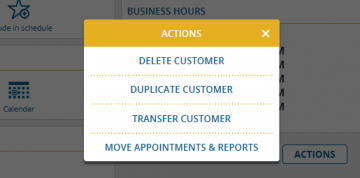
  • The restriction of “Transfer data” means that no customers (incl. appointments and reports) can be moved or copied between users via customer mass editing.
  • Changes of permissions in Salesforce and Dynamics CRM will only have an effect after the next synchronization with portatour® Anywhere.
  • There is no permissions administration available for single user licenses. They can still use all program features as usual.

We are pleased to offer an additional instrument for adjusting portatour® to your company’s requirements by providing the new permissions administration. Do you have feedback? Simply send an e-mail to feedback@portatour.com.

Getting more out of portatour® with the new application check

Automatic route planning software can only be as good as the data and settings it is fed with. In addition, the software only achieves its full potential if it is used properly.

We from the portatour® team want you to achieve best results with portatour®. Therefore, we have added the “Application Check” feature to portatour®. At the push of a button portatour® automatically checks more than 35 criteria regarding data quality, scheduling parameters, territorial characteristics and usage hints. Over the past years, our team has identified the typical road blocks which frequently arise during the introduction of automatic route planning and summarized them in a comprehensive criteria catalogue.

As a result of the application check you receive an inspection report with detailed information which criteria have been met and where improvements are recommended. Click the respective line to learn which specific problem has been identified, its effect and how you can solve it, and – for enterprise accounts with several users – which users are affected.

Application Check EN

This is how you get to the portatour® Anywhere application check:

  • If you are an administrator or supervisor of an enterprise account click the new menu item “Organization > Request report”.
  • If you are a field rep request the portatour® report as usual in the options. From now on, it will contain your personal application check at the end.

PS: Please install the latest version of  portatour® if you use  portatour® in combination with Salesforce or Dynamics CRM (download for Salesforce, download for Dynamics CRM). After that, the administrator can also start the application check directly from Salesforce or Dynamics CRM respectively.

In-house feedback button

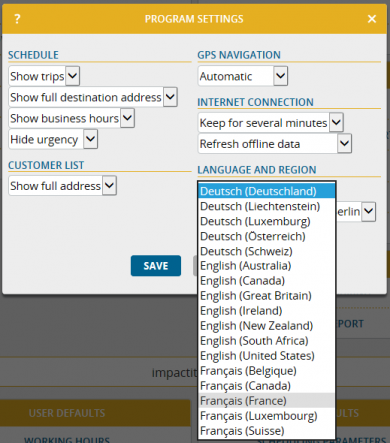
When you introduce portatour® in your company it is – especially in the initial phase – decisive for success to tackle users’ questions and problems quickly and easily. In order to better ensure that, corporate clients with purchased licenses now have the possibility of configuring a feedback button in portatour®. As an administrator you simply go to the “Program Settings” in the options menu and enter the e-mail address to which the feedback mails shall be sent – e.g. to the internal project supervisor. The feedback button will always be displayed for users on the bottom left corner of the screen.

In case users have questions about using the software or scheduling, they can simply click the feedback button and describe their problem. The current portatour® report is automatically attached to the feedback mail and contains both the current schedule and the new application check. Optionally you can also attach files, e.g. screenshots.

Feedback EN

In case the project supervisor cannot answer a question, the supervisor can send it to the portatour® support team under support@portatour.com who is available as “2nd level support”.

P.S.: Please install the latest version of portatour® if you use portatour® in combination with Salesforce or Dynamics CRM (download for Salesforce, download for Dynamics CRM). The configuration of the feedback button is carried out by the administrator in the portatour® organisation settings. 

Longer notes field for call reports

Due to many requests, the note field in the portatour® call report has been extended from 254 to 1,000 characters, i.e. it now offers four times the space for your text protocols.

PS: Please install the latest version of portatour® if you use portatour® in combination with Salesforce or Dynamics CRM (download for Salesforce, download for Dynamics CRM) in order to apply the extension. 

May 2015 update

We have released an update of portatour® on our servers and released new downloads.

You will find detailed information about the improvements in these two articles:

We wish you a productive time using these new features and are looking forward to
your feedback, which you can send us to feedback@portatour.com .

P.S.: Should you be using portatour® in combination with Salesforce, update to the newest release (download for Salesforce) to access these features.

New maps 2015 with improved driving time estimation

We have updated our map material to the current state of 2015.

At the same time we improved the driving time estimation of the schedule calculation. For the first time, the driving time of a street segment will be estimated based on historic driving times collected by navigation system providers and mobile telephone carriers from the movement patterns of millions of drivers.

These improvements, together with changes in the road network may affect driving times between customers, so we recalculated them for you in portatour®. Some users might notice the change when updating the schedule for the next time.

Through this update, one part of portatour® changes: at Options there are Driving Speed settings. Previously, you were able to enter an absolute driving speed here (i.e. in miles per hour). From now on, you set how your driving speed relates to historic average driving data. For example, “on highways I drive 10% faster than the average”.


DrivingSpeeds

We are happy that this update improves the schedule quality considerably and adds additional optimization to the routes created by portatour® for you.

Hints:

  • Real time traffic information (for example: traffic jams caused by accidents) are not considered in route planning.
  • The historic driving times are always the average value of the whole working day. For road segments that have diverting driving times during rush hours the daily average is used as a basis for calculation.
  • Should you suffer by slow traffic based on “rush hour” traffic in cities, we recommend adapting the driving speed option on city roads, for example to “30% slower”.
  • Should you have adapted the driving speed settings already before this update, your settings have been automatically converted to the new setting.

Improved selection of starting location for route planning

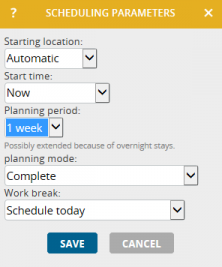
In the Scheduling parameters of the Schedule you now have two new choices to select a Starting location: Automatic and GPS location.

Set on Automatic, portatour® will detect automatically if your route should start at your home location or at the last visited customer, as needed when updating the schedule during the working day.

Should you want to calculate a route from a different location – for example because you had a lunch break at a restaurant – you can now use the GPS location in portatour® Anywhere. This works on all devices with a GPS unit (all modern smartphones and tablets).

In the Scheduling parameters of the Schedule, set Starting location to GPS Location. Save and Update schedule.

Important: When portatour® first uses the GPS location your browser will ask you to confirm that portatour® can read the current location of your device. Confirm this with yes and give portatour® access to your GPS location. Should you answer “no”, portatour® will not be able to use GPS until you enable this manually in the settings of your browser. If you run into problems, contact your IT helpdesk.

Getting the current location can take – depending on device and GPS reception – several seconds. After successfully getting your location, you will see your current position on a map and the related address beside it.

StartingLocation-GPS-Location

Hint: By clicking on the map you can correct the starting location. By changing to “Manual” you can enter the address manually.

Save stores the found location and starts the schedule calculation.

The starting location remains on the “GPS Location” setting until you report a customer call. Then it will reset itself to “Automatic”.

New: Call Blocks for customers

From now on you can create “Call Blocks” for customers. A call block is effective for a defined duration and has a reason, for example “from 23rd Feb to 27th Feb contact person John Doe is out of office”. portatour® adheres to the call blocks when planning routes and will not suggest to visit a customer during a call block.

Call blocks replace the preceding “Exclude from plan” feature and bring important advantages:

  • Call blocks are always automatically terminated at a predefined date. You don’t have to remove them manually at this date and you can’t forget doing so.
  • Call blocks allow entering a reason. This way you know – even in a month – why you have blocked a customer.
  • Call blocks can be entered for future occasions. For example, you can enter that the customer is closed in summer next year.
  • There can be multiple call blocks per customer. For example, to block a customer “closed in March and October”.

Call blocks can be found and edited in the customer detail view:

call block list at customer

Call blocks can also be entered quickly from the schedule and the calendar. Open the context-menu of a suggested visit and select “new call block“.

edit call block

If the newly created call block includes the date of a suggested visit, the schedule will show a red warning message and you should update the schedule:

call block in schedule


Two tips regarding call blocks:

  • Do you want to see all customers with a call block? Use the “extended search” above the customer list and set the predefined filter “call block” to “present”.
  • Do you want to create call blocks for multiple customers in one step? Use the “extended search” to find the customers in question and then the “edit all” button below the list. In the mass-editing menu, click “new call block”.

Notes about call blocks:

  • Expired call blocks are removed automatically.
  • Appointments at customers will be included in the schedule despite a call block effective for the respective date. In other words: appointments still have the highest priority in your calendar.
  • For customers who were previously set to be “Exclude from schedule”  an unlimited call block was added automatically.
  • You cannot create unlimited call blocks. To keep a customer from being suggested in schedules, set the call interval of the customer to “none”.
  • In a future update, call blocks will also replace the holiday-field of the scheduling parameters of the customer. We will keep you informed.

P.S.: Should you be using portatour® in combination with Salesforce or Dynamics CRM, update to the newest release (download for Salesforce, download for Dynamics CRM) to access these features.