
This update affects administrators of company accounts with at least two users and enabled user groups.
From now on, a new coloring option is available on maps that colors customers according to the group membership of their users. To use it, proceed as follows:
- Open the desired organization or group workspace.
- Click Customers > Map.
- Click the gear icon in the top right.
- Under Color, select the option Color: User group.
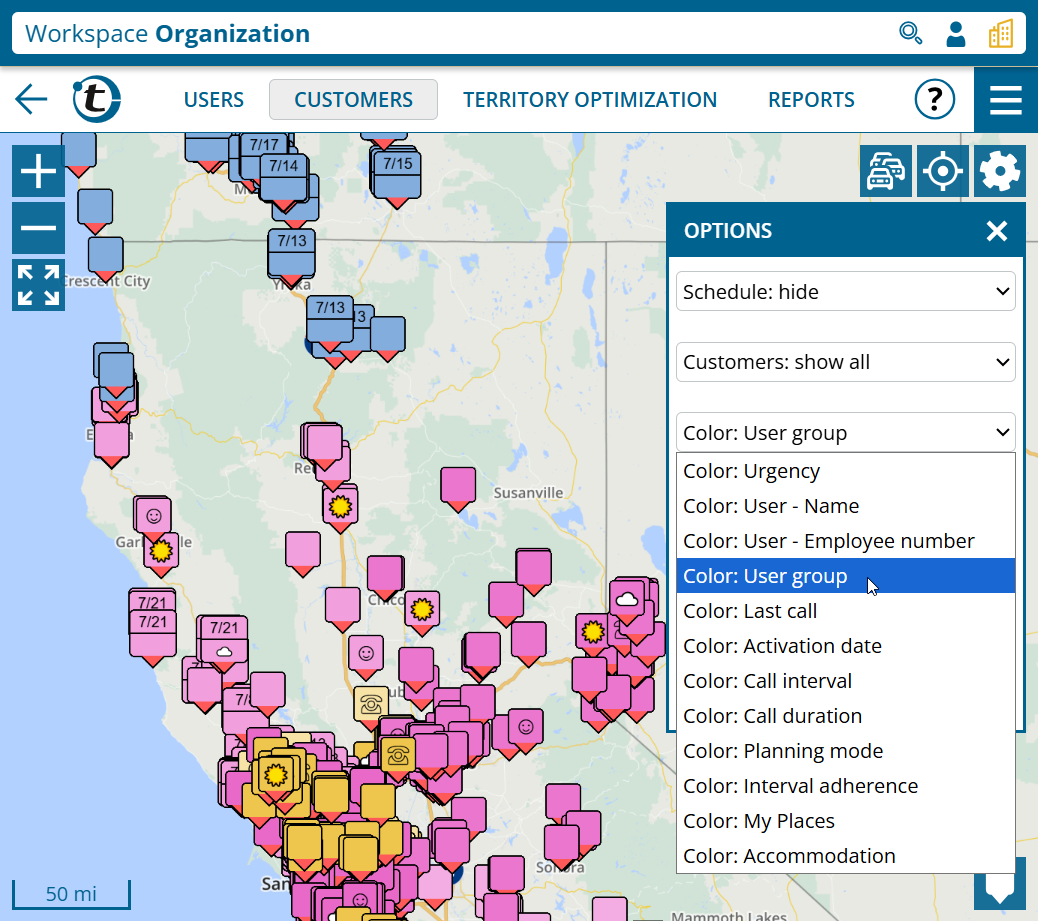
Note: Users who are part of multiple groups are colored based on their group combination. Users with the same combination receive shades of the same base color.
The next section affects administrators and supervisors of company accounts with activated Territory Optimization.
Coloring by user group is also available in Territory Optimization for territory colors. To activate it, proceed as follows:
- Open any map in Territory Optimization.
- Click the gear icon in the top right.
- Switch to Territory colors: by user group.
- Territories with the same user groups receive the same base color and are grouped.
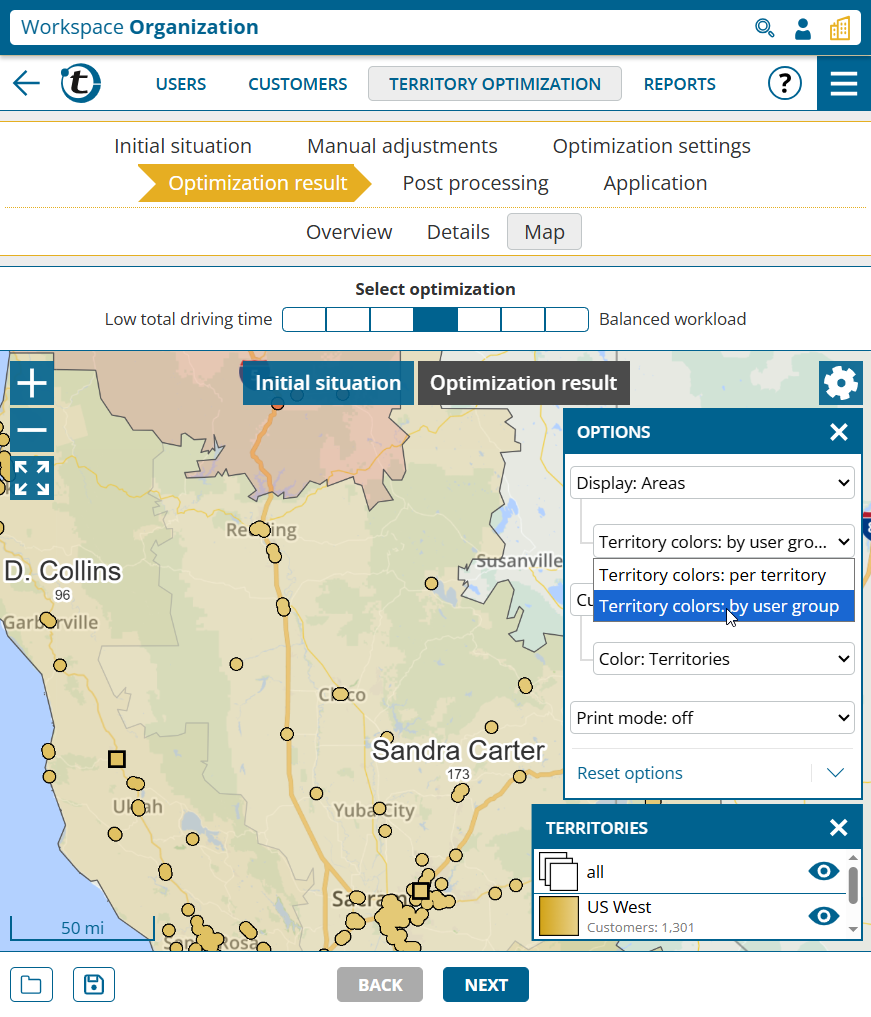
Tip: If you frequently use territory coloring by user groups, you can save it as your default via Save current options.