Appointments flexible in the week and better prioritization

Appointments are crucial when calculating your schedule. You now have the option of scheduling appointments flexibly within a week instead of just on a fixed day. In addition, appointments are prioritized depending on their flexibility.

Appointments flexible in the week

Are you familiar with this? You have agreed with a customer to visit them in a certain week, but until now you had no way of creating a flexible appointment for the week. Instead, you had to create an appointment at a specific time or an appointment “flexible on the day”.

You can now create an appointment “flexible in the week” for a customer as follows:

  1. Open the customer detail page and click on “New appointment
  2. At Schedule, select the option “Flexible in the week” and then the desired calendar week from the list or via the calendar

Call suggestions and existing appointments can also be converted into appointments flexible in the week:

  1. Open the context menu of an entry at calendar or schedule
  2. Click on “Convert to appt. flexible in the week

Appointments flexible in the week will be included in the next schedule calculation within the selected week, taking into account your working hours and customer opening hours.

For better differentiation, appointments flexible in the week and on the day are marked with corresponding symbols.

Note: This function is not yet available if portatour® is connected to Dynamics CRM as the data source system.

Appointments prioritized according to flexibility

If appointments with different flexibility conflict with each other or not all appointments can be accommodated in the schedule, the following prioritization will apply in future:

  1. All-/Multiday appointments
  2. on time planned appointments
  3. Appointments flexible on the day and appointments with leeway
  4. Appointments flexible in the week

Reservations and call suggestions are still prioritized lower than appointments.

Improvements to the map

More zoom levels

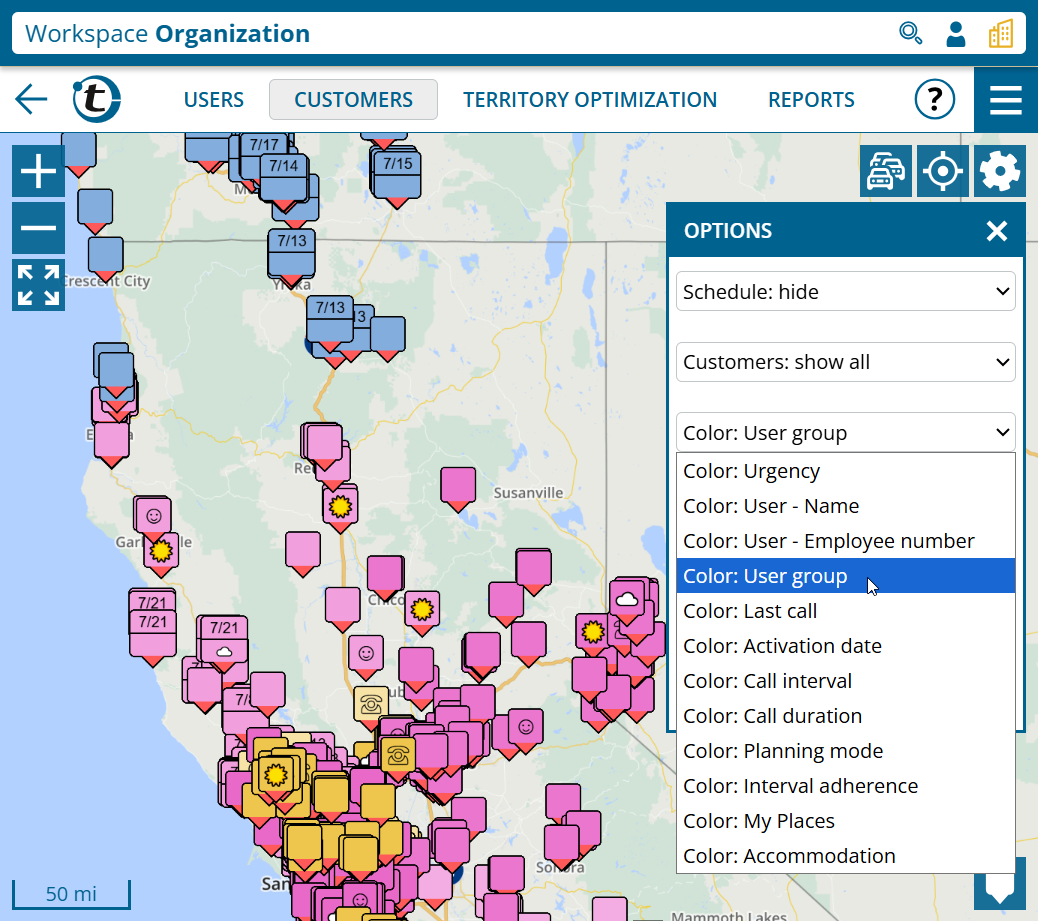
The map now offers additional zoom levels. This makes optimum use of the available screen space during the initial display. In addition, the new zoom levels are also available when zooming via touchscreen or with the mouse wheel.

Display of upcoming customer appointments

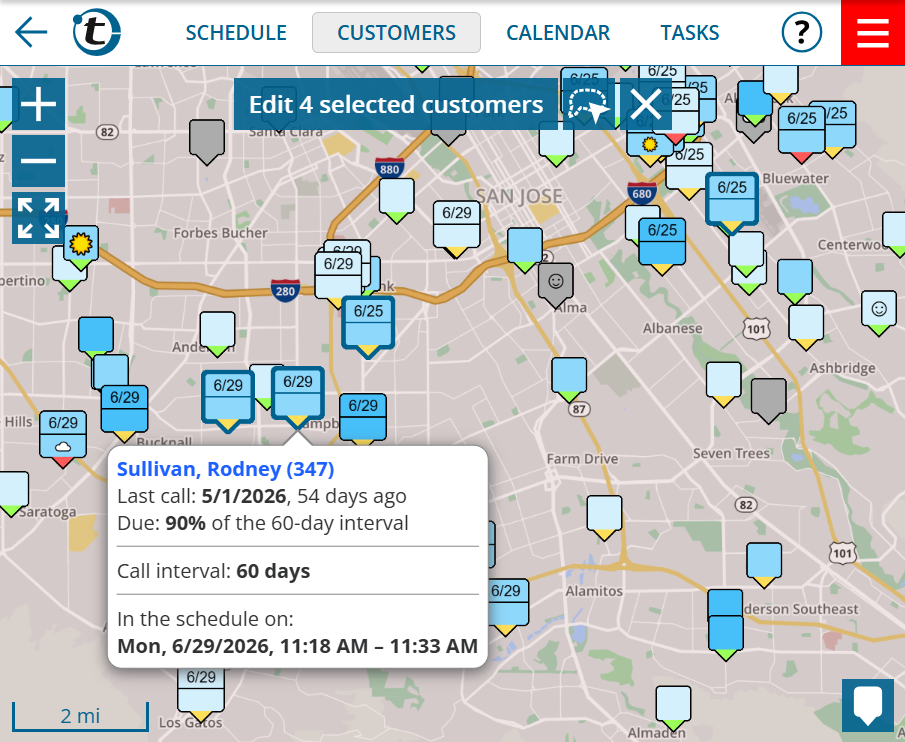
Previously, only those customer symbols for which an appointment had already been scheduled in the schedule were marked with a “A”. From now on, appointments that are further in the future and not yet scheduled will also be taken into account.

You can also see the upcoming appointments in the information bubble of a customer.

Additional information on organization-wide map

This news concerns administrators and supervisors of company accounts with at least two users.

The next call according to schedule as well as upcoming customer appointments are now also shown on group-wide and organization-wide maps.

Geocoding warnings include possible deviation

Have you ever had a geocoding warning but no idea what impact it could have on your schedule? Now you can get more details: Geocoding warnings now include the possible geographical deviation.

This potential deviation is now also determined during automatic geocoding as part of an import and displayed on the geocoding page.

  1. Open the main menu and select geocoding
  2. If you do not yet see a deviation in the geocoding warnings, click the button Geocode problematic addresses again

The warning list is sorted according to the possible deviation. Work through the list from top to bottom.

Subscribe to calendars from Google

Would you like to use appointments and holidays that you manage in Google in portatour® for your customer call schedule without having to enter them manually twice? With the calendar subscription feature for Google released today, you can do this in just a few steps.

The configuration and use is analogous to Subscribe to the calendar from Outlook under “Options” > “Calendar subscriptions” > “add” and then “Login with Google”.

Major June 2025 update

After an intensive development period, we have released a major update of portatour® today. To read details about the new features, simply scroll down or use the following links:

We wish you lots of fun and success with the new functions and look forward to hearing from you at feedback@portatour.com.

Subscribe to Outlook calendar

Would you like to use appointments and public holidays that you manage in Outlook also in portatour® for scheduling without having to enter them twice manually? With the new calendar subscription function, you can do this in just a few steps. Appointments are automatically transferred to portatour® on a regular basis.

Important notes in advance:

  • Only online calendars are supported: Appointments must be saved in a Microsoft 365 account (Outlook Web / Exchange Online). Local Outlook calendars on your computer cannot be accessed by portatour®.
  • Read-only access: Calendar subscriptions are unidirectional, i.e. appointments are imported from Outlook to portatour®, but never written back.

How to manage your calendar subscription

To add a calendar subscription, proceed as follows:

  1. Open “Options” in the main menu.
  2. Select “Calendar subscriptions” > “Add“.
  3. Click on “Log in with Microsoft“.
  4. Log in with the access data of the respective account.
  5. Allow access to calendar data. If access is blocked by your organization, contact your IT administrator.
  6. A window for configuring the calendar subscriptions opens.
  7. Assign a freely selectable name for the subscription (e.g. “Company account”).
  8. Beneath all calendars are listed that are available in your account.
  9. For those calendars that you want to subscribe to, change the selection box as follows:
    1. Subscribe to appointments” to import appointments that are not all-day appointments.
    2. Subscribe as days off” to import only all-day appointments that affect portatour® as “days off” – typically for public holiday calendars.
    3. Subscribe with custom settings” to configure settings itself.
  10. Click “save“.

Important note: Adding or editing a calendar subscription can only be done by the user themselves. Administrators or supervisors have no access to the subscription configuration of users, as this requires individual permissions of users at Microsoft. Nevertheless, as a user, please note that appointments from subscribed calendars are visible to supervisors and administrators in portatour® and may be transferred to third-party systems in your company. Therefore, to protect your privacy, proceed with caution when subscribing to private calendars .

Go to calendar view to check whether appointments have been successfully imported from the subscription. Please note that the automatic import process can take up to one minute for many appointments.

To edit or delete a calendar subscription, click on the name of the desired subscription in “Options > Calendar subscriptions” and then “edit” or “delete“. Deleting removes all subscribed appointments of the deleted subscriptions from portatour®.

Updating the appointments from a calendar subscription

The regular import of appointments from calendars happens fully automatically. If you actively use portatour® and one hour has passed since the last update, the update is automatically carried out in the background. This happens transparently, without blocking or notifying you.

However, if an error occurs, you will see a red warning in the main menu.

To see when the last update took place, click on the cogwheel in the top right-hand corner of the calendar view. Any errors that occurred during the update will also be displayed here.

You can also start an update manually here at any time. To do this, click on “Update calendar subscriptions“.

Working with subscribed appointments

You can recognize subscribed appointments in all views (calendar, appointment list, schedule) by the Microsoft logo.

In addition, in the detailed view you will find a section containing information for the subscribed appointment.

In Online-Meetings you will find a “Join now” button.

Compared to normal appointments, subscribed appointments are restricted in two important ways:

  • Editing of subject, date and time is not possible in portatour® .
  • Deleting is not possible in portatour® .

Carry out these processes in Outlook instead. To quickly open the appointment there, click on “Open in Outlook” in the context menu or in the detailed view of the appointment. Any changes or deletions made there will be transferred to portatour® the next time the calendar subscription is updated.

Subscribed appointments are included in the schedule by default. If you do not want this for an appointment because it should not have any influence on your day trip, click on “Exclude appointment from schedule” in the context menu or in appointment details under “Actions”. In the calendar, these appointments are displayed in gray with the corresponding symbol.

Customer reference from subscribed appointments

It is important that appointments, which take place at customers, also have a reference to the corresponding customer in portatour®. This ensures that customers are not suggested more than once in schedules or that the last visit date of customers is updated correctly.

By default, portatour® attempts to automatically determine the customer reference for subscribed appointments using email addresses. For this purpose, the email addresses of appointments (organizer, participant) are searched for in the email addresses of your portatour® customers. All custom fields with the data type “e-mail address” are taken into account.

If exactly one customer is found in this way, the customer reference is set automatically.

If no customer is found, the appointment is provided with a warning – visually recognizable by a red question mark. Use the context menu or appointment details to select a customer for the reference or remove the customer reference, which will also remove the warning.

If several customers are found, the appointment is also provided with a warning. The customers found are offered for selection.

Note: You can also configure the automatic determination of the customer reference or the warning behavior for each subscribed calendar in the options, depending on your requirements.

Address of subscribed appointments

When determining the appointment address, portatour® proceeds as follows by default:

  1. The address is taken directly from the appointments in Outlook and geocoded. If the geocoding is not possible exactly, a geocoding warning is added to the appointment.
  2. If the address is empty but a customer reference is found, the address of the customer is used as appointment address.
  3. If this is also unsuccessful, the appointment will be provided with a geocoding error.
  4. If the appointment is marked as Online-Meeting, the appointment is created without location reference.

Since an exact address is important for route planning, you can change the address yourself, edit and geocode it as you would with normal appointments. However, an address changed in this way is not synchronized back to Outlook. The change is retained in portatour® as long as the appointment address does not change in Outlook.

Note: You can also configure the automatic determination of the address or the error behavior yourself for each subscribed calendar in the options, depending on your requirements.

Further information on calendar subscriptions

  • By default, subscribed appointments are taken over in the time span from one month in the past to 3 months in the future. To adjust this period for a calendar, click on “Show settings” in the administration of calendar subscriptions below the calendar, then on “Use as custom settings and edit” and then adjust the time span.
  • All appointments are accepted regardless of their status (e.g. with reservation, private, draft, …).
  • Appointments of a series are also adopted. In portatour®, however, they are handled as separate individual appointments.
  • If you export appointments from portatour® , subscribed appointments are also included. You can recognize them by the value 4 in the “Creation method – ID” field or “calendar subscription” in the “Creation method – Name” field.
  • If you import appointments into portatour® , existing subscribed appointments are neither editable nor will they be deleted. Corresponding lines in the import file are ignored.
  • If you use Microsoft Dynamics CRM as the source system, then calendar subscriptions are not possible. Ensure that the desired calendars are synchronized directly to Dynamics and from there to portatour®.

Warnings for appointments

Appointments play an essential role in the visit plan calculation. Accordingly, their data quality is important. portatour® now displays a red message in the main menu if there are warnings for future appointments. Appointments from calendar subscriptions are also taken into account.

Click to go to the list of affected appointments. Open the detailed view of this appointment to see the respective warning message in red font. We recommend a prompt elimination of the causes to ensure a high quality of schedules.

Extended search with relative date filters

The extended search now also supports relative values in the filtering of date fields.
Example: “customers, for which the last visit date is in the last 7 days.”

Relative filters allow you to reuse saved searches with date filters without having to adjust them every time you use them.

How to use relative date filters:

  1. Open an extended search.
  2. In the user-defined filter in the first selection box, select a date field. This gives the second selection box additional relative filter options.
  3. In the second selection box, select the desired relative filter (e.g. “last X days + today”).
  4. If the filter contains an “X” as a placeholder, enter the desired numerical value (e.g. 7) in the input field next to it.
  5. Click on “Apply“.

Maps receive improved print mode

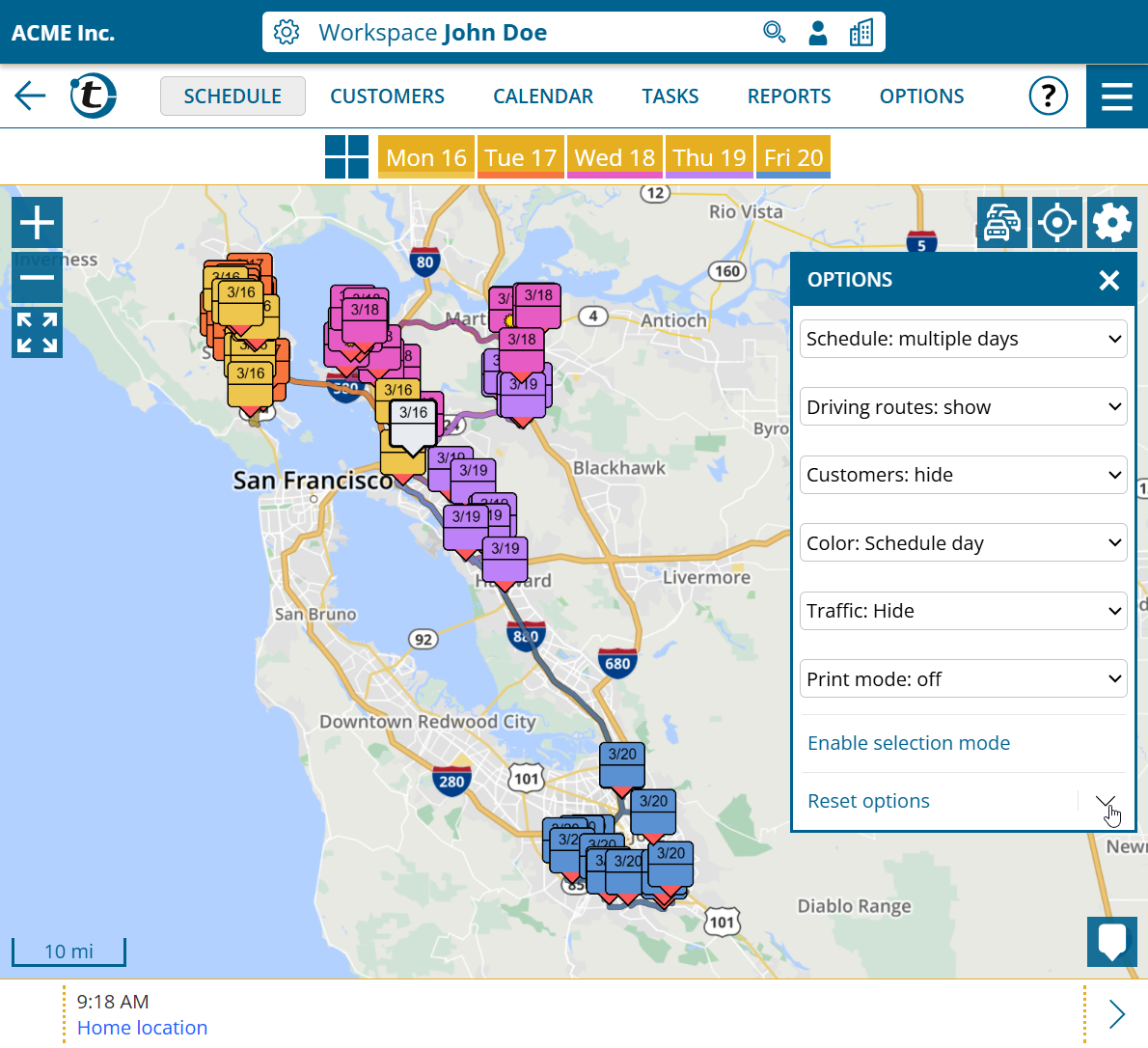
Proceed as follows to use the new print mode for printouts or PDF export:

  1. Open a map view.
  2. Click on the cogwheel at the top right.
  3. Switch to “Print mode: on“.
  4. Select format and alignment.
  5. You will see the map preview in the selected format, on which you can continue to zoom and move. The legend can also be expanded and collapsed.
  6. Optionally, enter a title that should appear on the printout.
  7. Click “Print“.
  8. Tip: In the following printer dialog remove the margins to avoid unnecessary page breaks.

To exit print mode, switch to “Print mode: off“.