
This news affects administrators and supervisors of company accounts with activated territory optimization.
Sometimes only certain field reps can take care of certain customers. Reasons for this may include, for example, requirements regarding language skills, specialized knowledge, or experience.
To better take this into account in automatic territory optimization, portatour now offers the “Qualifications for territory assignment” feature. This ensures that each customer is assigned to a user who meets all the necessary qualifications.
And this is how you proceed:
- Activate and define qualifications organization-wide
- Enter fulfilled qualifications for users
- Enter necessary qualifications with customers
- Perform territory optimization with qualifications
Activate and define qualifications organization-wide
- Open the “options” in the “Workspace Organization“.
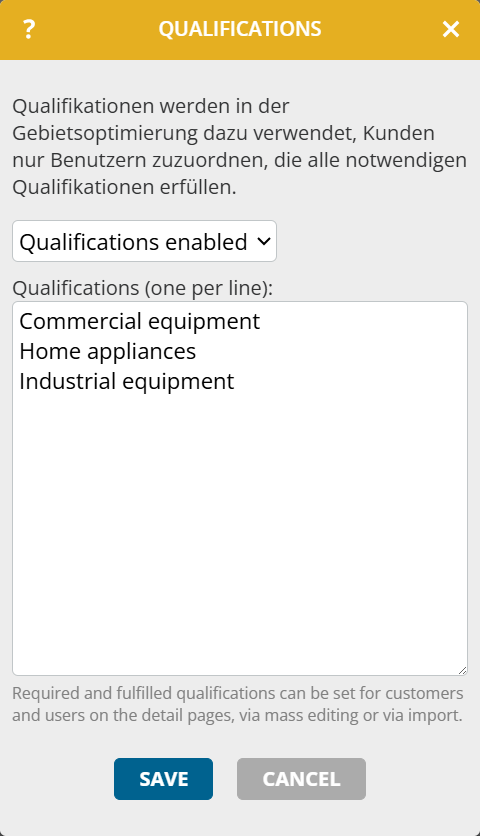
- Click on “Qualifications for territory assignment“.
- Select “Qualifications enabled“.
- Enter up to 20 possible qualifications for your company line by line. If you want to assign the key for each qualification yourself, then proceed as described at Definition of user-defined selection and multiple selection fields
- Click on “Save“.
Enter fulfilled qualifications for users
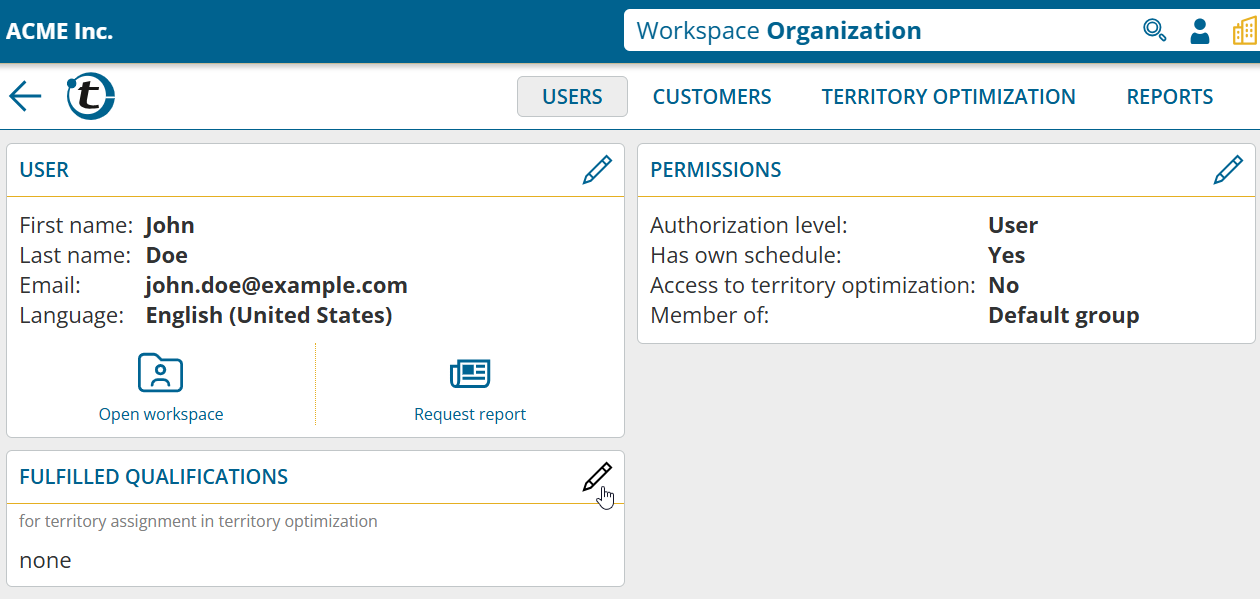
- Open the details page of a user.
- Click on the pencil in the section “Fulfilled qualifications“.
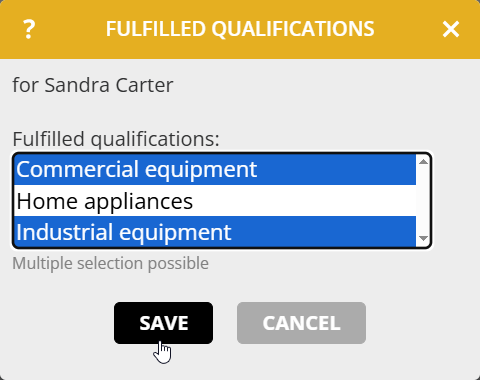
- Select the fulfilled qualifications
- Click on “Save“.
Alternatively, you have the option to set the fulfilled qualifications for multiple users via Mass editing or the Import. With mass editing, you not only have the option of replacing all qualifications, but you can also add or remove individual qualifications.
In the workspace organization in “Options > Permissions“, use the authorization “Change fulfilled qualifications for territory assignment” to specify whether these changes may only be made by administrators or also by supervisors.
In the extended user search you will find the new filter “Fulfilled qualifications“.
Enter necessary qualifications for customers
As with users, you enter the necessary qualifications for the customers via details page, mass editing or import.
In the workspace organization in “Options > Permissions“, use the authorization “Change required qualifications for territory assignment” to specify whether these changes may only be made by administrators, supervisors or users.
Perform territory optimization with qualifications
Analysis of the initial situation
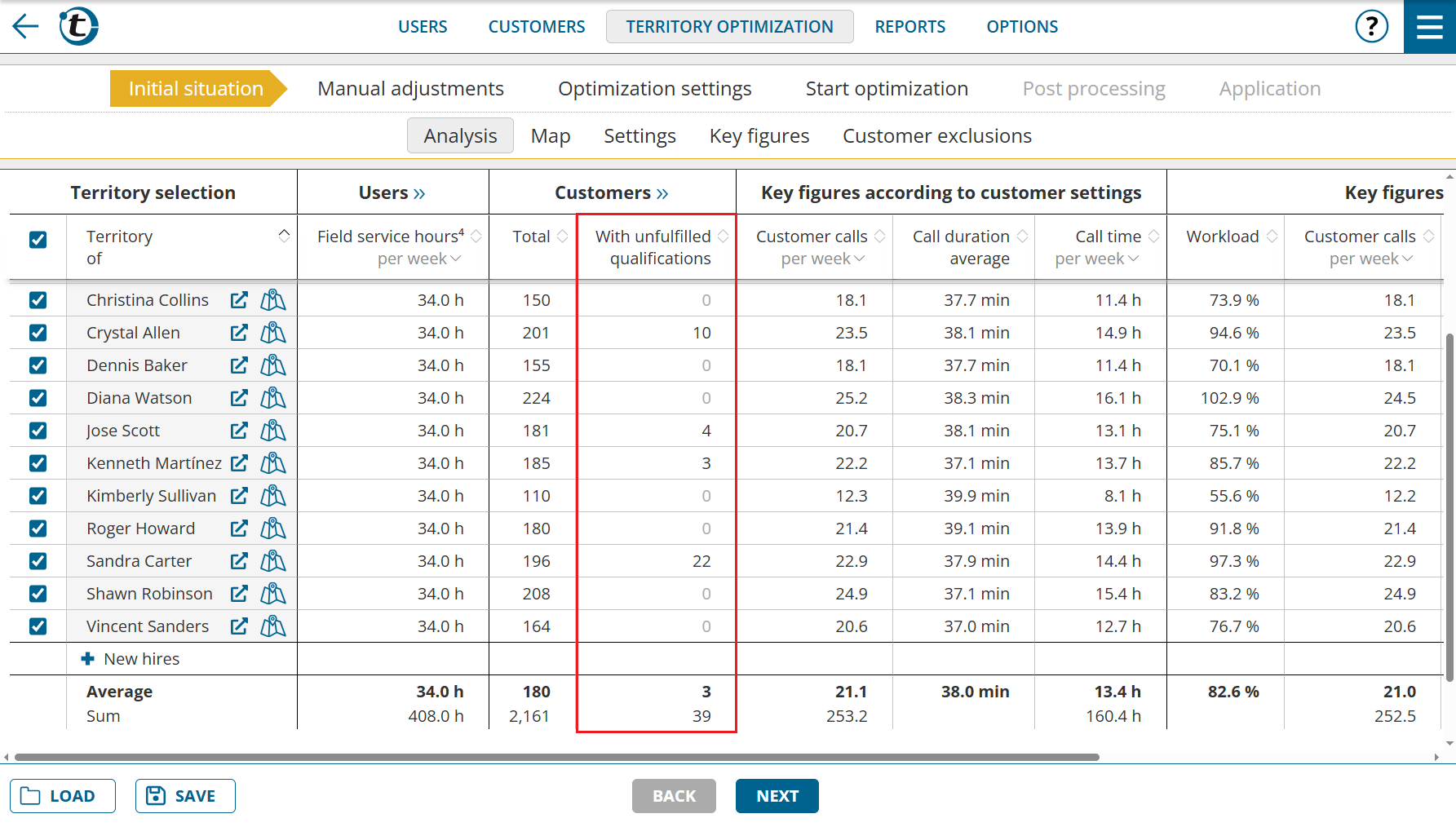
The new column “Customers with unfulfilled qualifications” shows the amount of customers whose qualifications are not fulfilled by the current user. If all qualifications of all customers are met, the column is initially hidden.
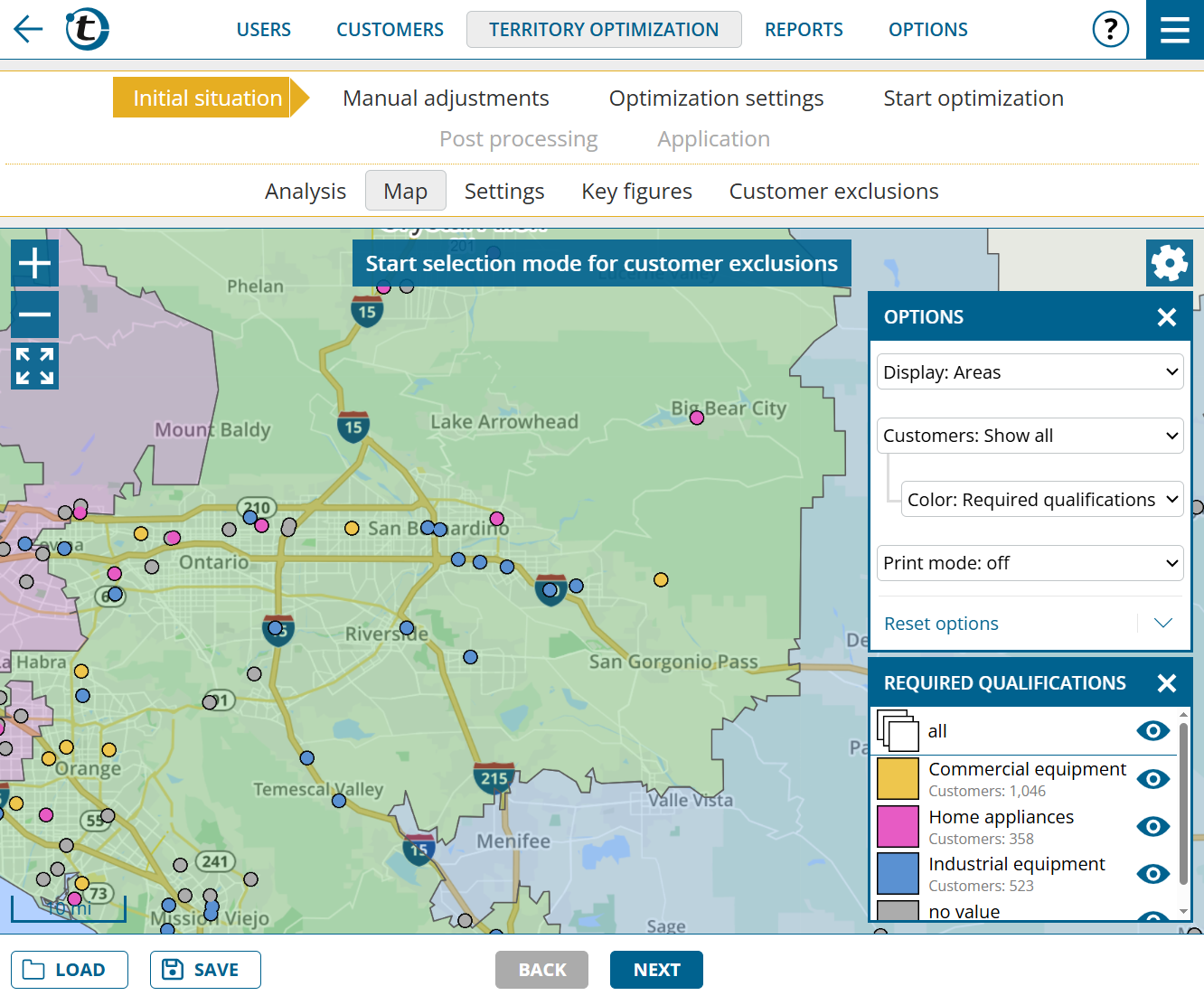
The new coloring option “Color: Required qualifications” is available on the map, which colors the customers according to their necessary qualifications. This allows you to see at a glance in which regions requirements are concentrated.
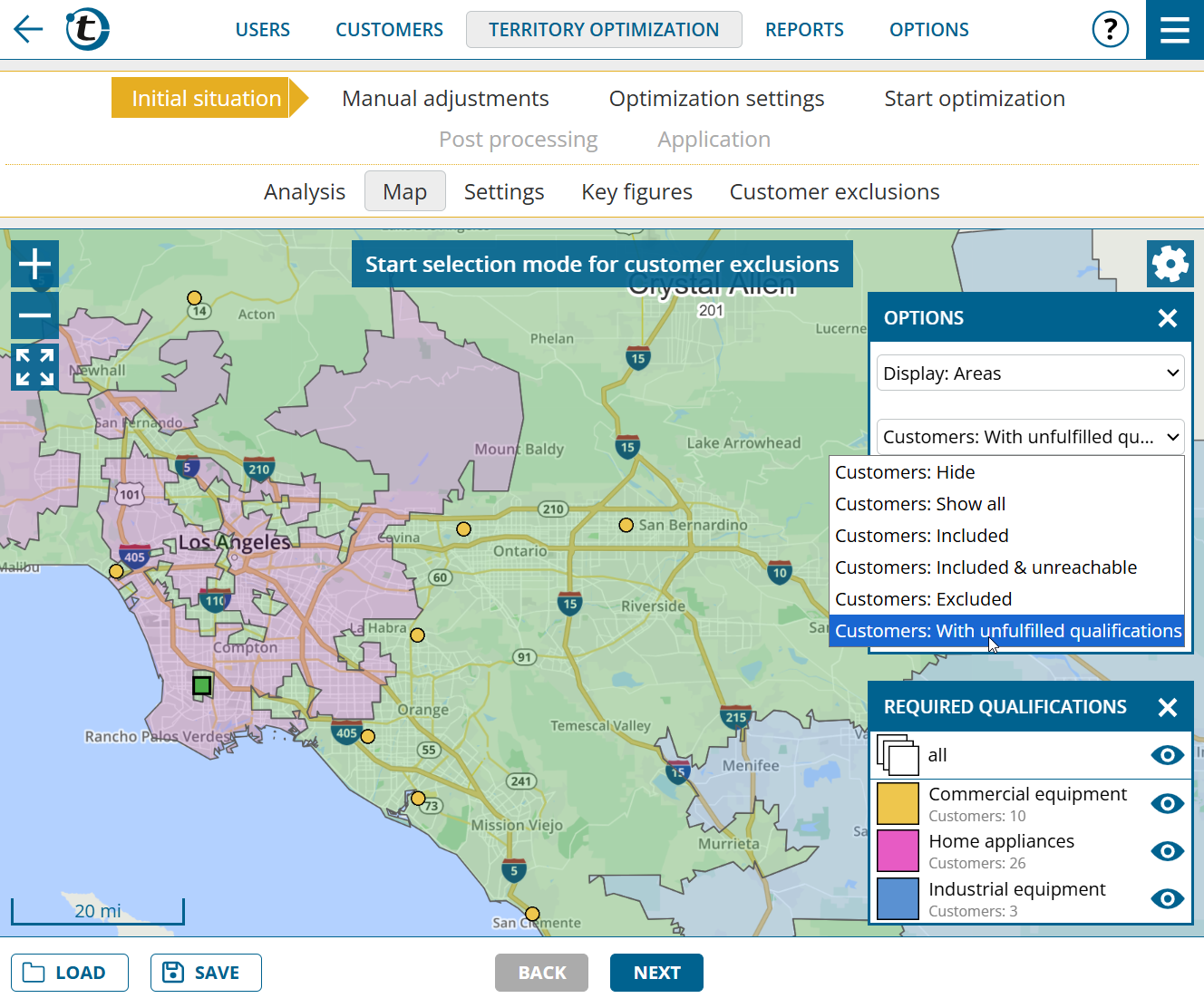
The new filter “With unfulfilled qualifications“, only shows those customers whose qualifications are not met by the current user.
Start optimization
portatour® only assigns customers to users who meet all the necessary qualifications during the optimization.
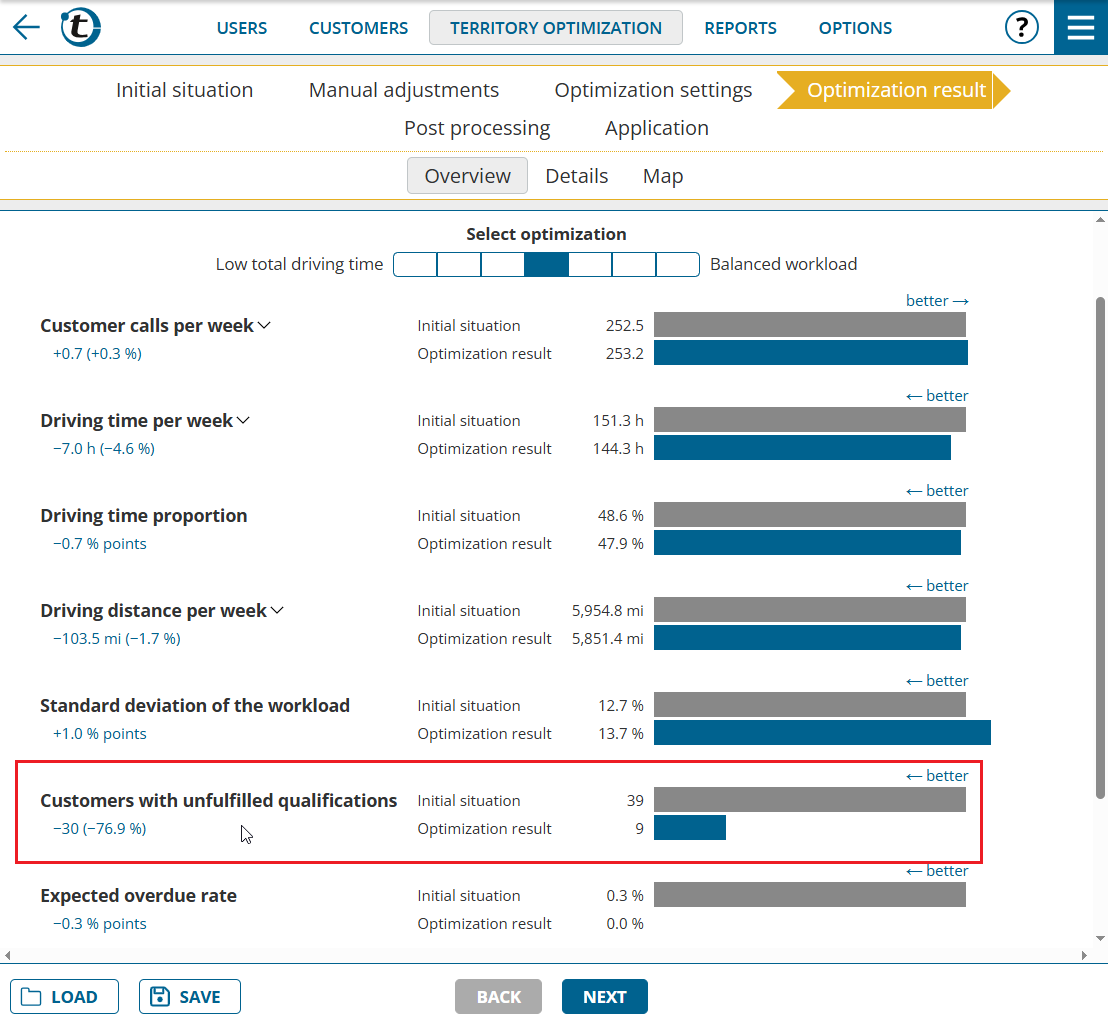
In the results overview, you can see the reduction of customers with unfulfilled qualifications, if there were any.
For further analysis, the same functions are available in the table and map as in the initial situation.
Note: If you deliberately want to carry out the optimization without taking qualifications into account, set “Optimization settings > General > Qualifications for territory assignment” to “Ignore“.
Simulate scenarios using manual adjustments
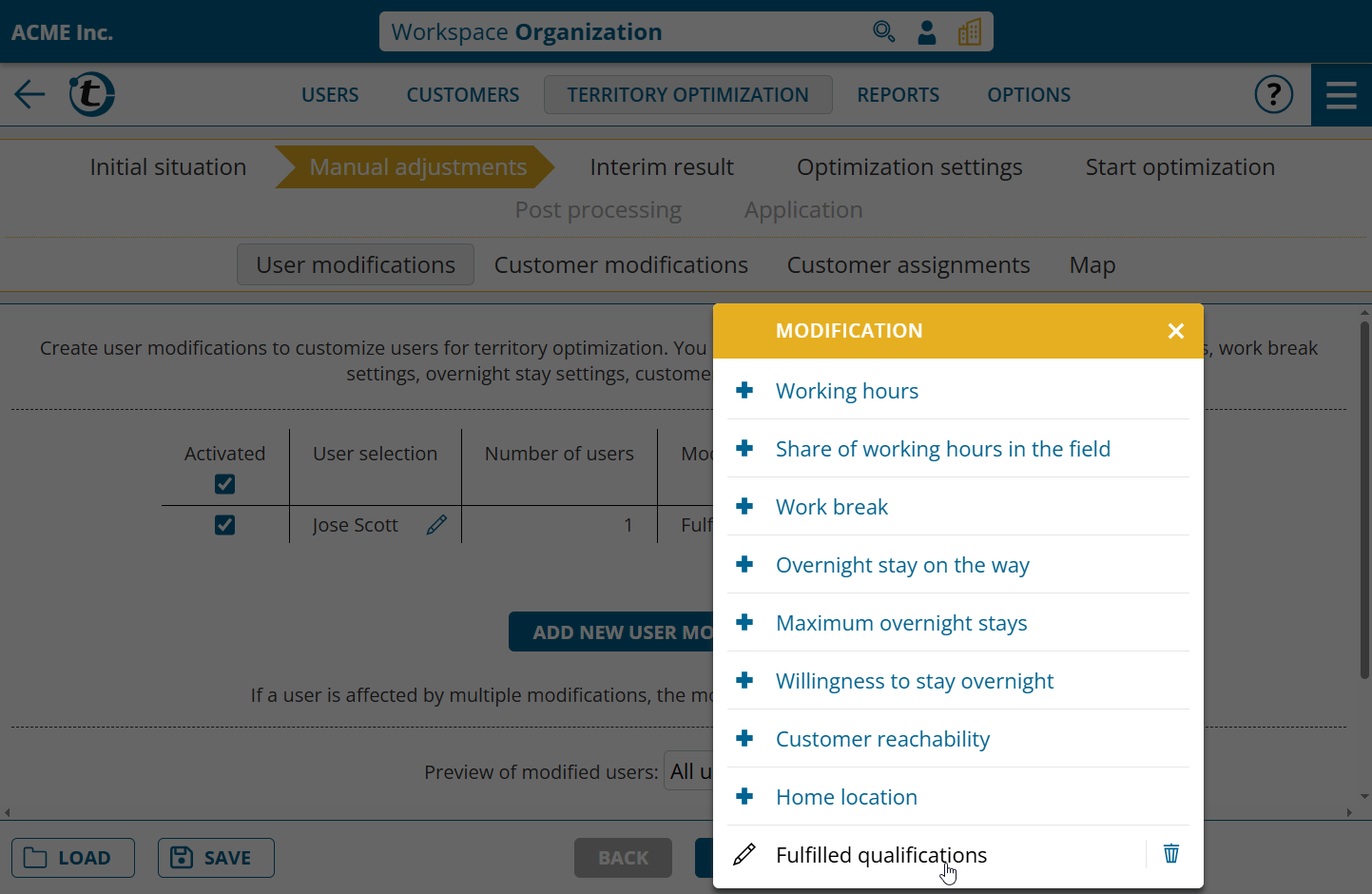
If you want to try out different scenarios without having to change the master data, you can use manual adjustments. This allows you to make specific changes to qualifications required by customers and qualifications fulfilled by users.
Note: Qualifications for territory assignment are not yet available if portatour® is connected to Dynamics CRM as the data source system.